

Slack
Reply from Slack
Reply from Slack adds a Reply button to review cards in your alert channel. Open the modal, write your response (or start from an AI draft), and AppReviewBot publishes it on the public App Store or Google Play listing — no App Store Connect, Play Console, or dashboard tab required.
Features
- Reply from the review card — One click opens a modal with the full review context
- AI reply suggestions — Tap Auto-generate reply in the modal to get two draft responses tailored to that review. Click Use on either suggestion to drop it into the reply field, edit if you want, then submit
- Posts to the store — Replies go through your connected developer account and appear on the live review thread
- Same channel as alerts — Works on the Slack destination that already receives review notifications
Requirements
- Paid AppReviewBot plan
- Slack destination already receiving review alerts for the app
- Apple or Google store account connected in AppReviewBot
- Reviews must be from apps linked to that store account
Setup
1. Confirm plan and store account
- Open Billing in the dashboard and confirm you are on a paid plan.
- Connect your Apple App Store or Google Play account under Store Accounts.
2. Enable Reply from Slack
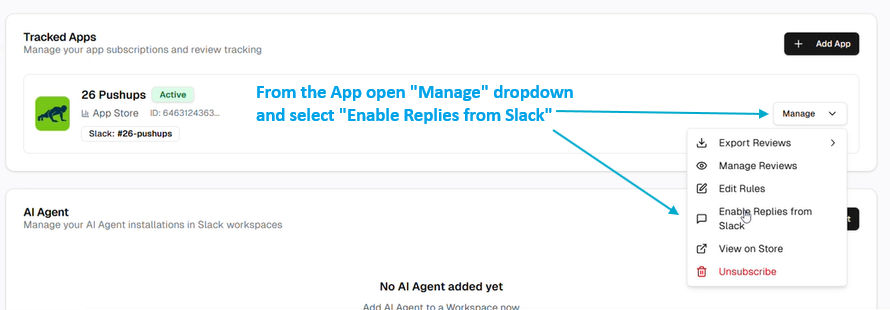
- Go to Dashboard and find the app that uses your Slack destination.
- Open the app Manage menu and choose Enable Replies from Slack.
- Approve the additional Slack permissions when prompted.
- Select the same channel that receives review alerts and click Allow.
3. Reply in Slack
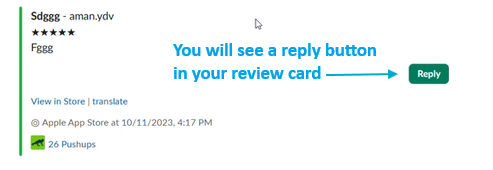
After enabling, review cards show a Reply button.
In the reply modal:
- Read the review — Rating, text, app, and store are shown at the top of the modal.
- Draft with AI (optional) — Click Auto-generate reply. AppReviewBot shows two suggested replies in the modal.
- Pick or write — Click Use on the suggestion that fits best, or type your own reply in Your Reply.
- Edit and submit — Adjust the wording if needed, then click Submit Reply. The response is posted to the app store.
You can skip AI and type from scratch anytime. Suggestions are a starting point — your team always reviews before anything goes live.
Before vs after
Before enabling — cards show review details only.
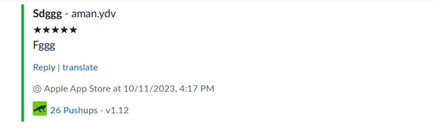
After enabling — cards include Reply, and the modal supports AI drafts plus manual replies.
Common use cases
- Respond without leaving Slack — Support replies from the review card while the rest of the team still has full context in the channel
- Draft faster under load — When several reviews need answers, auto-generate two options per review instead of writing every reply from a blank field
- Close the loop after a fix — Engineering tells a reviewer a reported bug is fixed in the latest version, straight from the thread where the team discussed it
- Handle spikes during incidents — When negative reviews jump after a release, the on-call person can generate a draft, tweak it, and post without switching to store consoles
- Keep tone consistent — Pick the AI suggestion closest to how your team usually responds, then make small edits before submitting
Related
- Slack overview — all Slack capabilities
- Review Alerts — set up Slack notifications first
- Reply from Destination — other platforms that support in-app replies