

Make
Install the AppReviewBot app
Already have a Make account? Install AppReviewBot in Make — skip this if the app is already installed in your organization.
Overview
AppReviewBot’s Make app connects your Apple App Store and Google Play reviews to Make (formerly Integromat). When AppReviewBot detects a matching review, it sends a structured webhook payload into your scenario’s Watch reviews trigger. From there you can route feedback anywhere Make supports — Google Sheets, Slack, email, CRMs, databases, AI tools, and thousands of other apps.
You filter by rating and country on the AppReviewBot subscription; Make handles everything after the review arrives.
Manage destinations from Destinations or Integrations in the dashboard. The guided Make setup page is at dash.appreviewbot.com/make-scenario.
Features
- Push delivery — New matching reviews trigger your Make scenario automatically
- Destination ID + API key — One destination per Make scenario; connect with your organization API key
- Subscription filters — Limit by star rating and country when you attach the destination to an app
- Reuse destinations — Attach the same Make destination to multiple apps, or create separate destinations for separate scenarios
- Detach on scenario delete — When you delete the scenario in Make, AppReviewBot can remove the linked destination
How it works
- You install the AppReviewBot app in Make and create a scenario with Watch reviews
- In AppReviewBot you create a Make destination and copy its Destination ID
- You paste the Destination ID (and API key) into Make and turn the scenario On — Make attaches its webhook URL to that destination
- You create (or update) an app subscription, choose Make, and select that destination
- AppReviewBot sends matching reviews to Make as they are fetched from the stores
- Each review arrives as a Make bundle you can map into downstream modules
flowchart TD
  A[Install AppReviewBot in Make] --> B[Create destination + Destination ID]
  B --> C[Watch reviews scenario On]
  C --> D[Link destination to an app in AppReviewBot]
  D --> E[App stores → AppReviewBot]
  E --> F[Watch reviews trigger]
  F --> G[Your Make modules<br/>Sheets, Slack, CRM, AI, ...]
Destination vs subscription
- Destination — Where reviews go (here: a Make webhook / scenario)
- Subscription — Which app (and filters) send reviews to that destination
Each subscription has one destination. To send the same app to Make and Slack, create two subscriptions. See What are destinations?.
Prerequisites
- An active AppReviewBot account
- Permission to install apps and create scenarios in your Make organization
- An AppReviewBot organization API key (created during setup or under Organization Settings → API Key; format starts with
arb_)
You do not need a store developer account connected unless you also want private reviews or reply features elsewhere. Add an app when you are ready to link the Make destination.
Setup
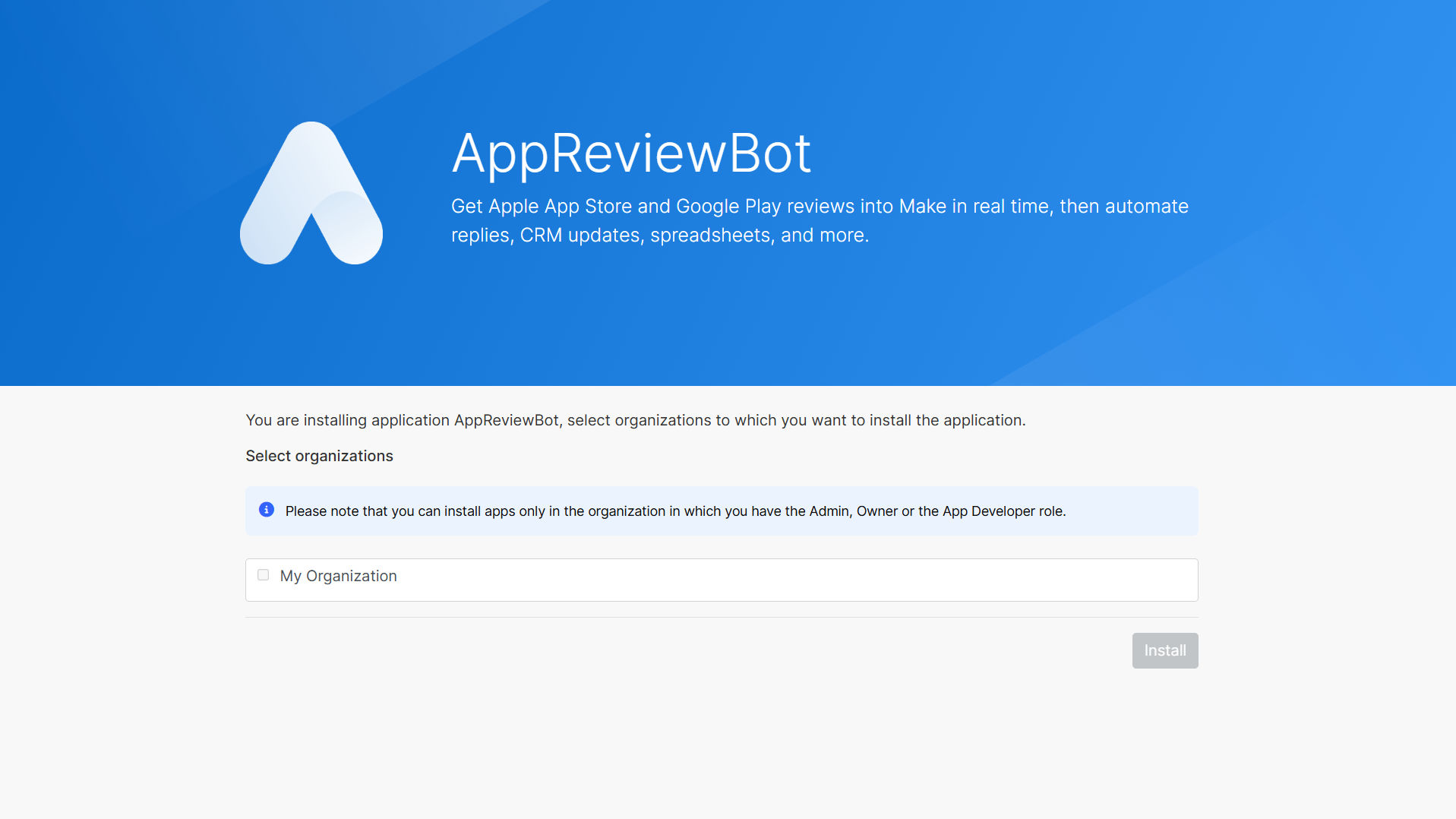
1. Install the AppReviewBot app in Make
Open the AppReviewBot Make invite and install AppReviewBot in your Make organization.
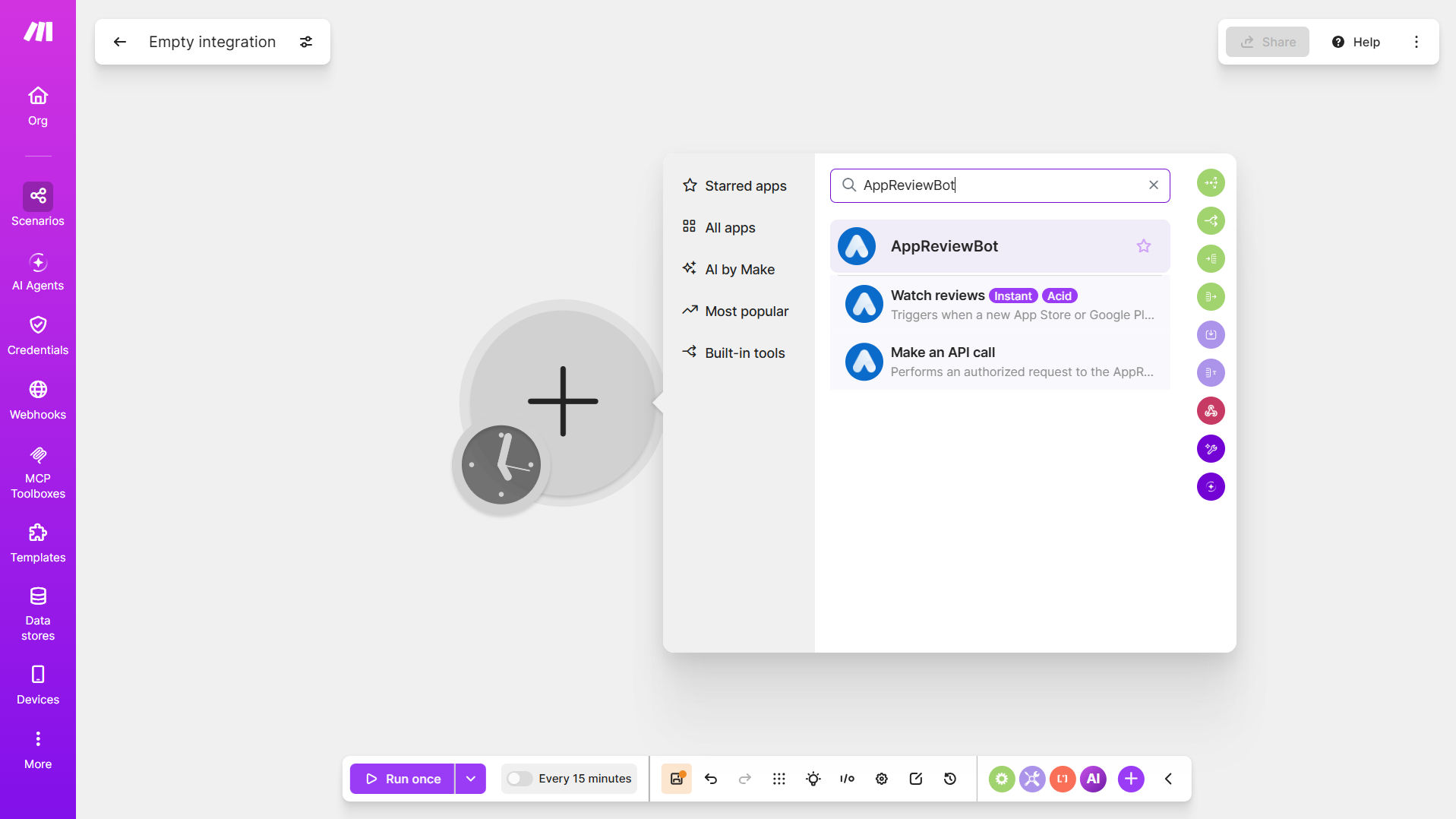
2. Create a scenario and add Watch reviews
In Make, create a new scenario, search for AppReviewBot, and select Watch reviews.
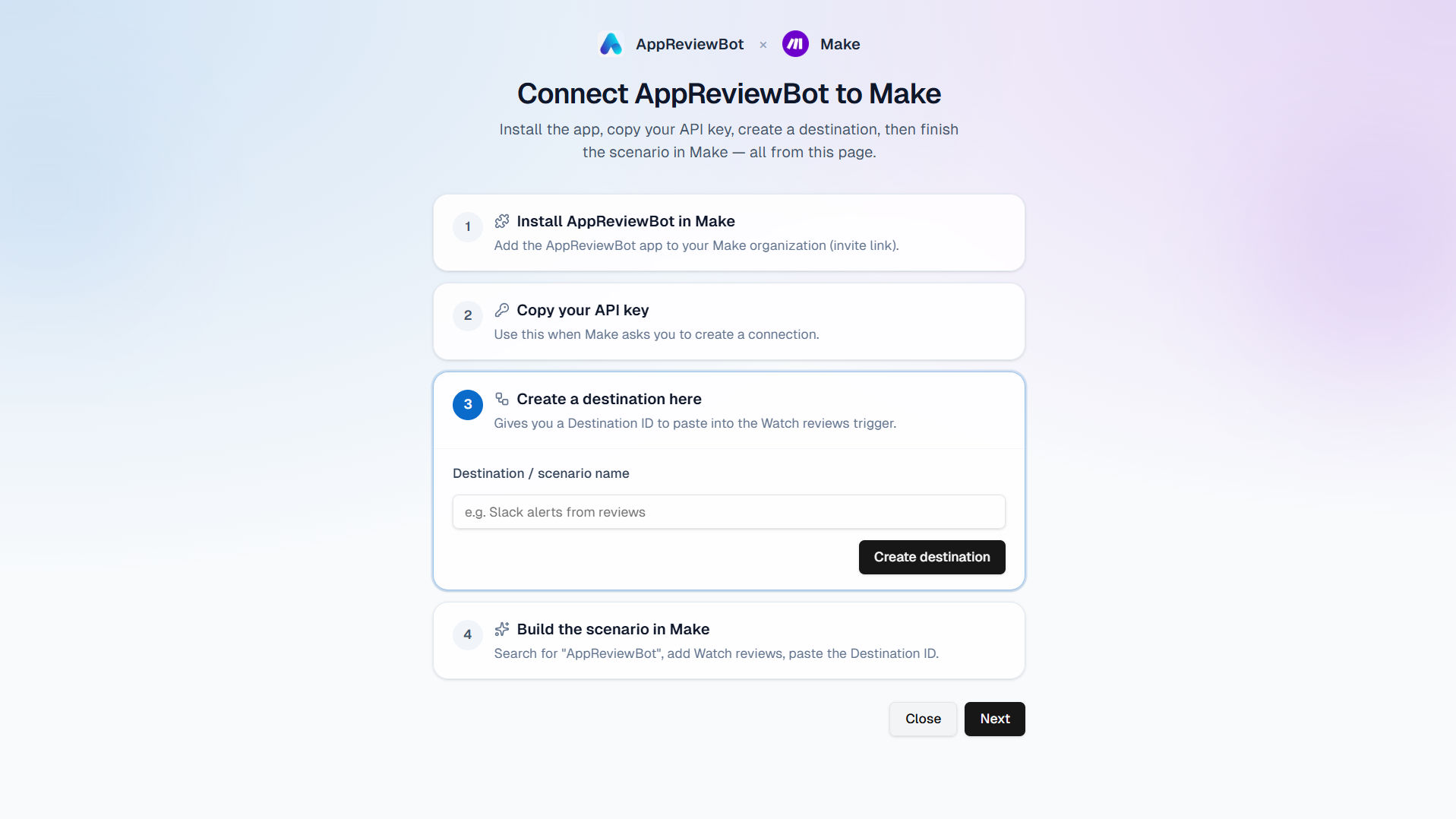
3. Connect your account and add the Destination ID
3a. Get your API key and Destination ID
Open dash.appreviewbot.com/make-scenario, generate (or copy) your API key, create a destination, and copy the Destination ID.
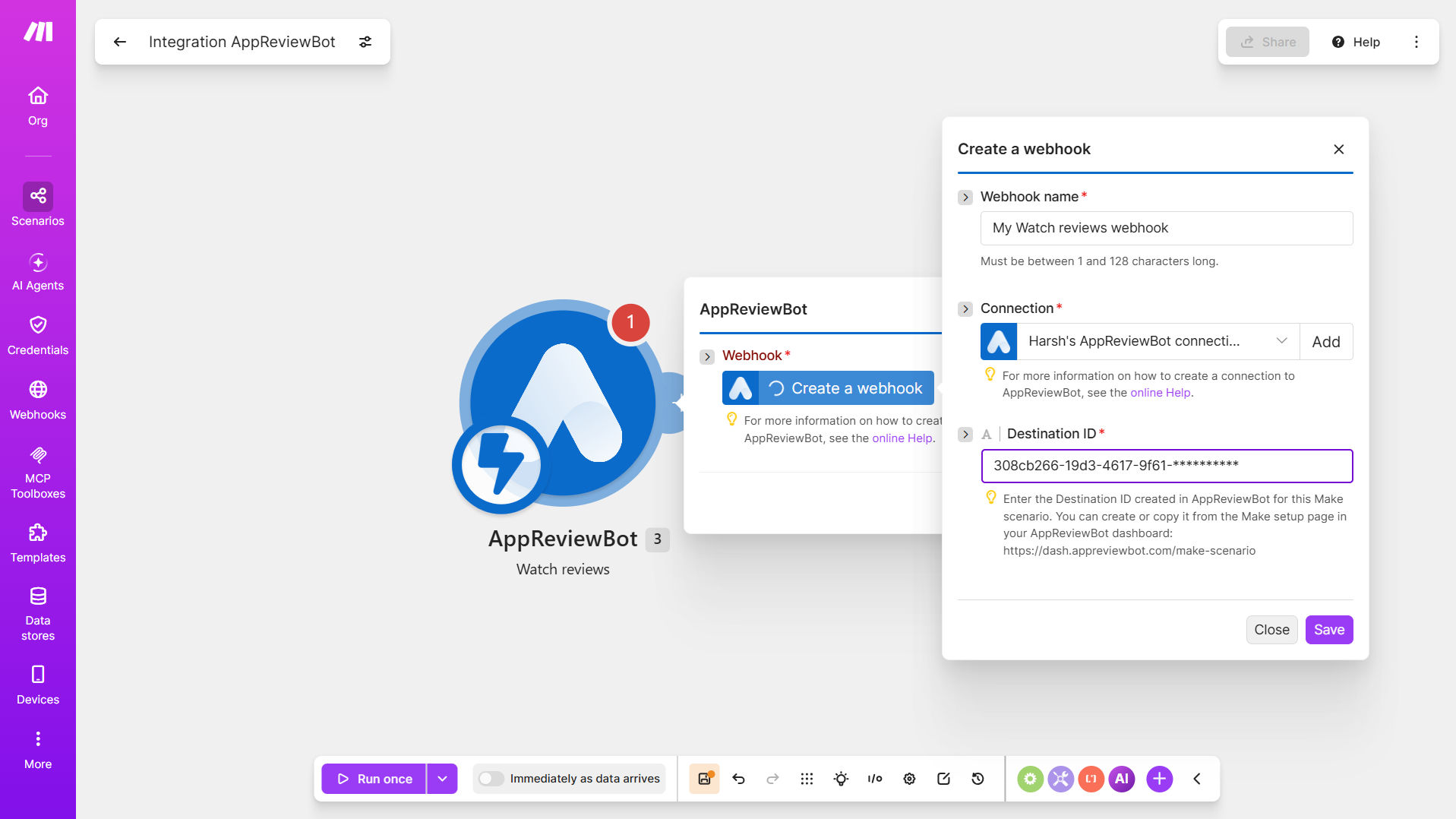
3b. Fill them into the Watch reviews trigger
In the Make module, connect your account with that API key, paste the Destination ID, and turn the scenario On.
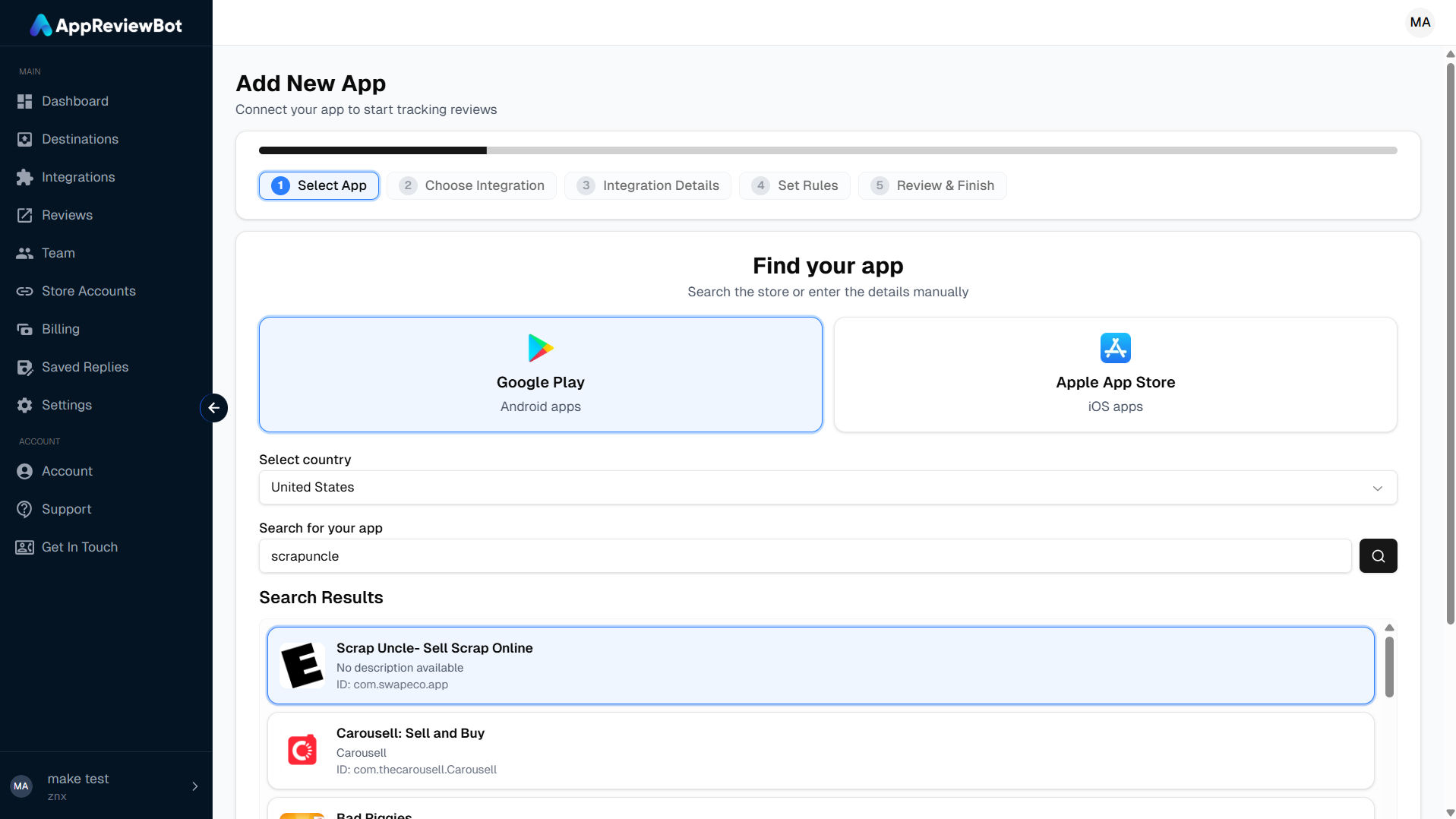
4. Select an app and choose Make
In the dashboard, start Create App, search for your app, and select Make as the destination provider.
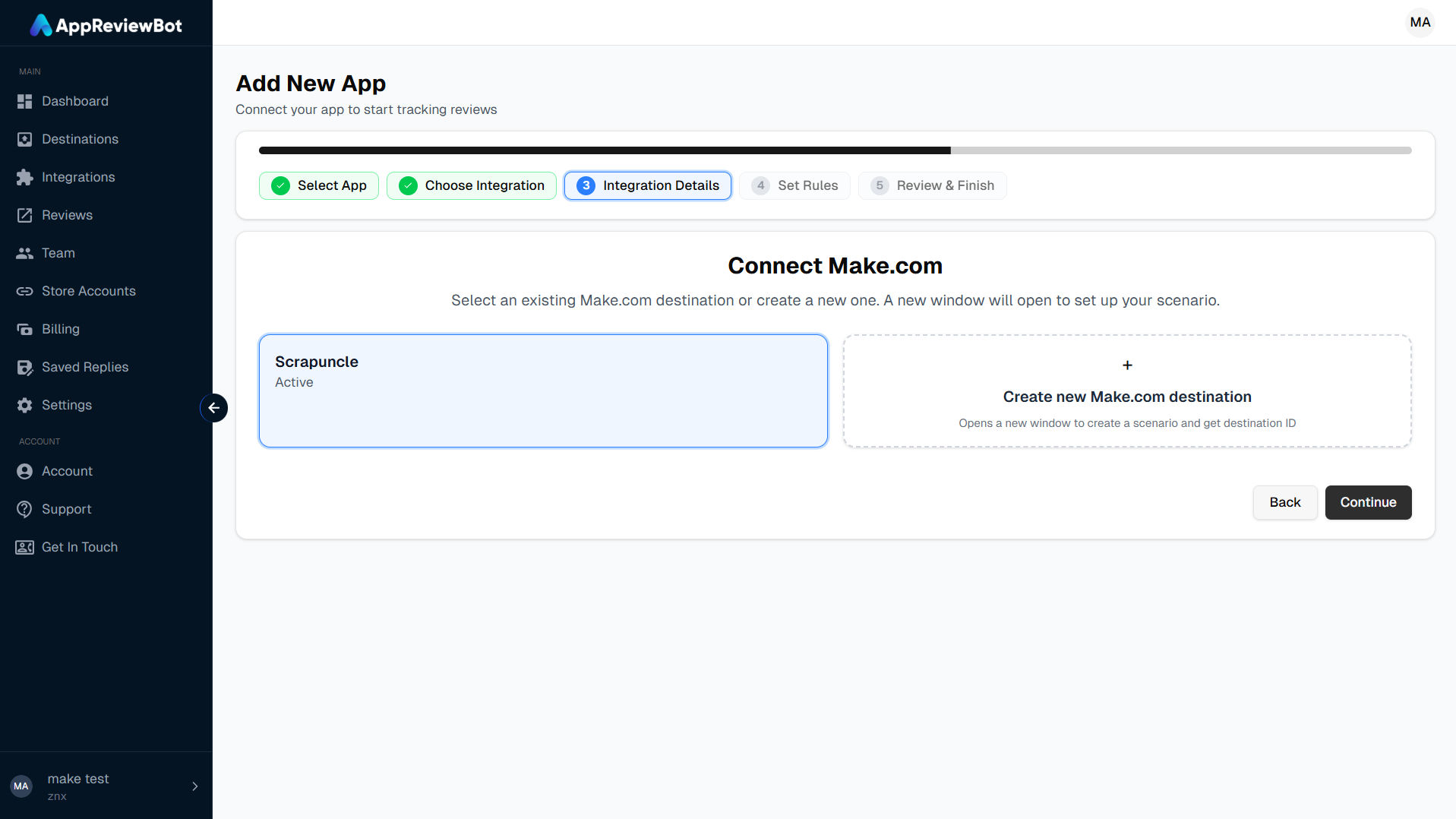
5. Choose your destination
Select the Make destination you created earlier.
6. Complete setup and receive reviews
Finish the wizard. AppReviewBot starts sending matching reviews to your Make scenario.
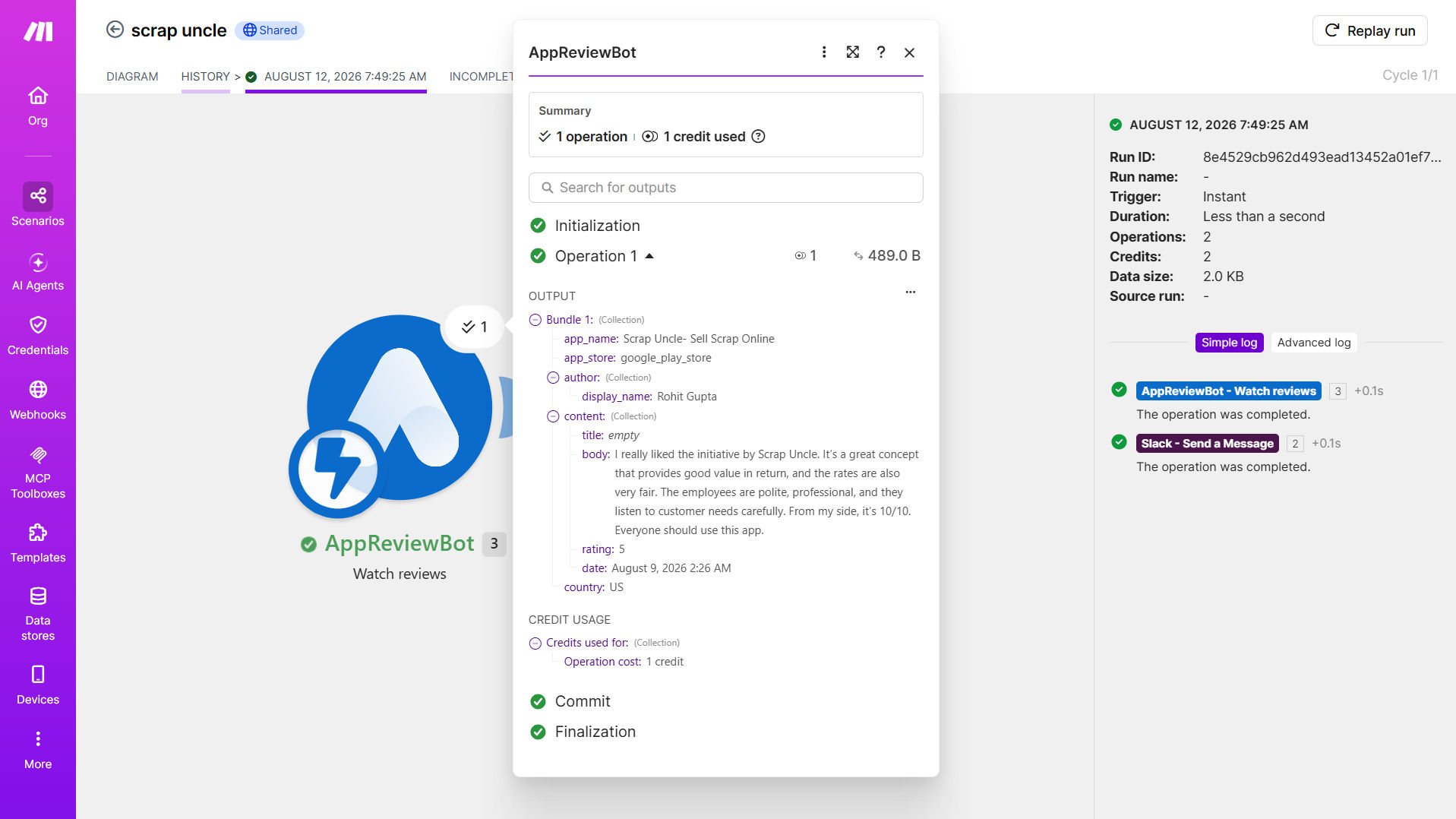
Review payload
Each review arrives as a JSON object in the Watch reviews bundle. Common fields:
| Field | Description |
|---|---|
app_name | App display name |
app_store | google_play_store or apple_app_store |
author.display_name | Reviewer name |
content.title | Review title (when available) |
content.body | Review text |
content.rating | Stars (1–5) |
content.date | ISO timestamp |
country | Country code when available |
Use Make’s mapper to map these into spreadsheet columns, ticket fields, message templates, and more.
Common use cases
Log every review in Google Sheets
- Watch reviews (AppReviewBot)
- Google Sheets → Add a row — map rating, body, app name, store, country, and date
Useful for historical archives, weekly reporting, and sharing a live sheet with stakeholders who do not use Make.
Alert Slack (or email) for low ratings only
- Watch reviews
- Filter —
content.ratingis less than or equal to 2 - Slack → Create a message or Email — include app name, stars, and review text
Keeps noisy 5-star chatter out of triage channels while still capturing problems.
Create a support ticket
- Watch reviews
- Filter — low ratings or keywords in
content.body(crash, refund, login, etc.) - Zendesk / Freshdesk / HubSpot / Jira — create a ticket or task with the review body
Enrich with AI, then notify
- Watch reviews
- An AI module — summarize sentiment or suggest a reply draft
- Slack, email, or Notion — post the summary for the team
Multi-app monitoring
Create one Make destination per scenario (or reuse one destination for a shared feed). Attach each AppReviewBot app subscription to the destination that owns that workflow — product apps to one sheet, brand apps to another channel.
Managing the integration
Pause delivery
- Turn the Make scenario Off, or
- Disable the destination in AppReviewBot Destinations
Reviews stop until you turn the scenario back on or re-enable the destination.
Attach the same destination to another app
Create App (or add a subscription) → choose Make → select the existing destination → finish. You do not need a new Destination ID unless you want a separate Make scenario.
Re-enable a disabled destination
If delivery fails repeatedly, AppReviewBot may disable the destination and email the organization owner.
- Open Destinations in the dashboard (or use the link in the email)
- Find the Make destination and click Re-enable
- Follow the on-screen steps — confirm the Make scenario is On and still uses the same Destination ID
- Once active, reviews resume for linked subscriptions
If the scenario was deleted, create a new destination and scenario (new Destination ID), then attach it to your apps again.
Delete or reconnect
- Delete the scenario in Make — Make detaches the webhook; AppReviewBot may remove the destination and related subscription. The owner can receive an email when this happens.
- Reconnect after delete — Run setup again: new destination on
/make-scenario, new Watch reviews module with the new Destination ID, then attach that destination to your app.
Troubleshooting
Related guides
- What are destinations?
- Add your first app
- n8n integration — pull reviews on a schedule with the community node
- ChatGPT integration — ask questions about reviews in ChatGPT
- Destinations FAQ
Need help?
Contact us if you need help with the Make integration.