

Connect Apple App Store Account
Linking your App Store to AppReviewBot
To maximize the benefits of AppReviewBot, consider integrating your App Store account and granting few credentials. By linking your App Store Account with AppReviewBot, you can:
- Access app version details for every review
- Get review alerts faster than others
- Respond to reviews directly through AppReviewBot
This guide will walk you through the steps to connect your Apple App Store account with AppReviewBot and how to permit access to your app reviews.
Only the App Store account owner can follow through with this guide.
You can also follow this video guide for adding your Apple App Store account:
Creating API Key in the Apple Store
Step 1: Sign In
Access the Apple Developer Account and sign in using the account owner's credentials.
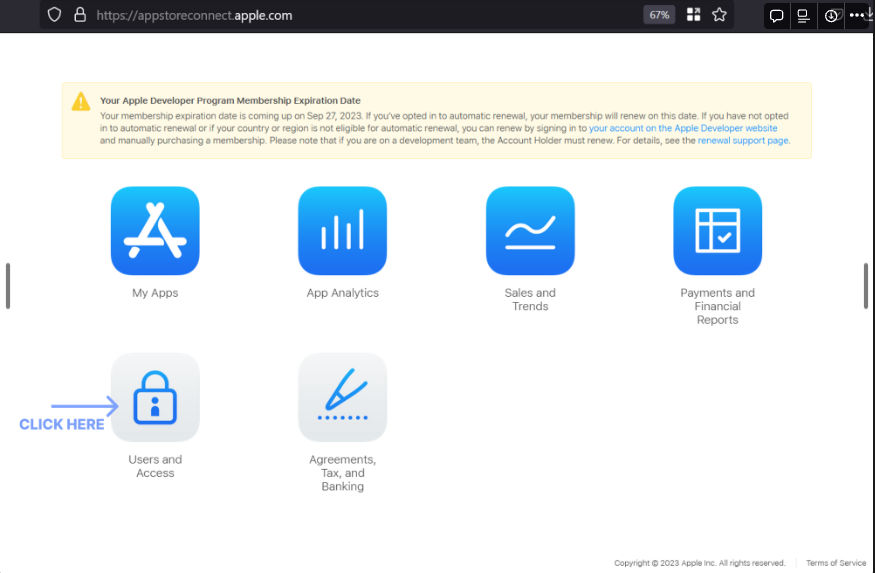
Step 2: Open "Users and Access" page
Tap on the "Users and Access" button from the available options.
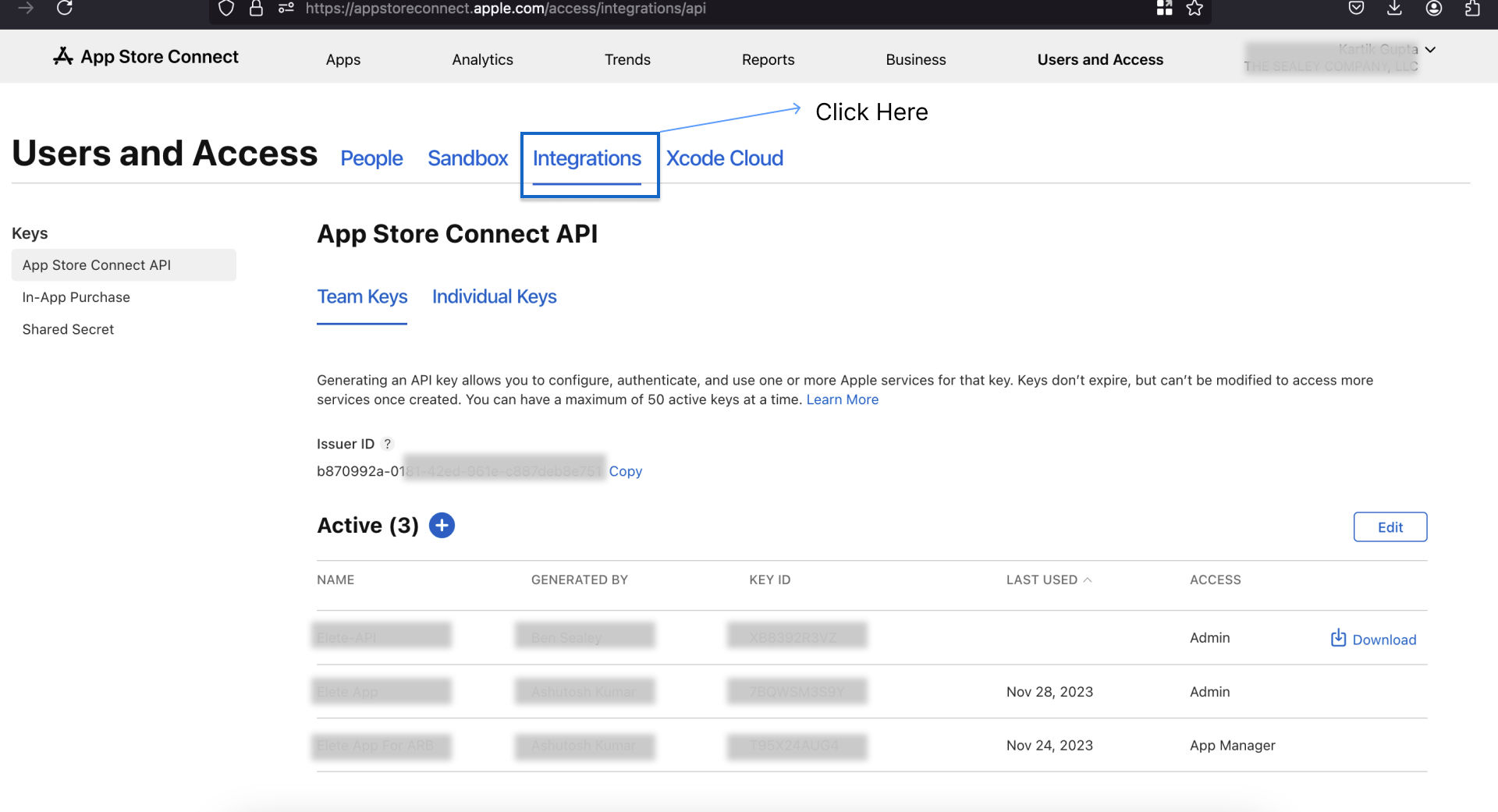
Step 3: Click on "Integrations"
On the top bar of the page (to the right side of "Users and Access"), you will find several options. Click on the "Integrations" tab.
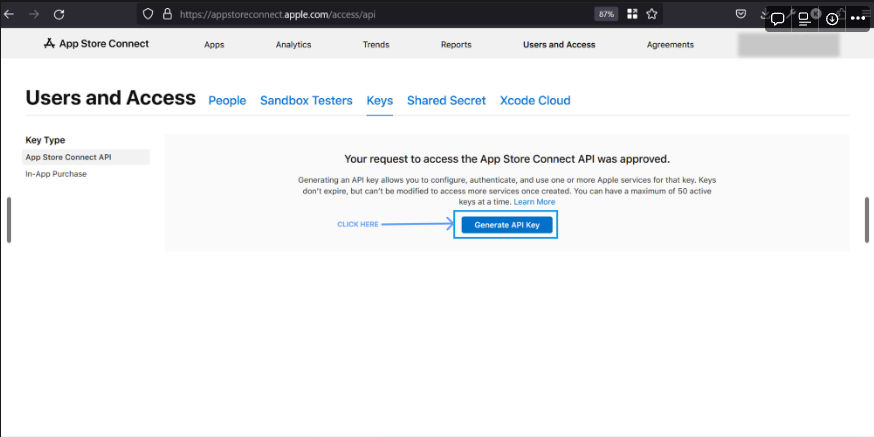
Step 4: Generate API Key
After clicking the "Integrations" option, a new page will open with two sections: "Team Keys" and "Individual Keys".
- Select "Team Keys"
- Click "Generate API Key" or the Plus (+) button
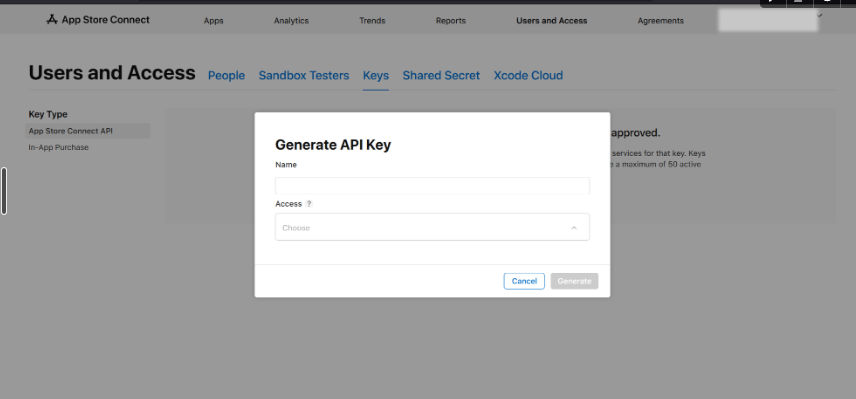
Step 5: Enter API Key Details
A form modal will appear asking for details about your API key:
- Fill in the required details
- Important: Give Access to "Admin"
Step 6: Get Your Credentials
After submitting the details, your new API key will be generated and displayed.
You will receive all the required credentials:
- Issuer ID
- Key ID (API Key)
- Private Secret Key
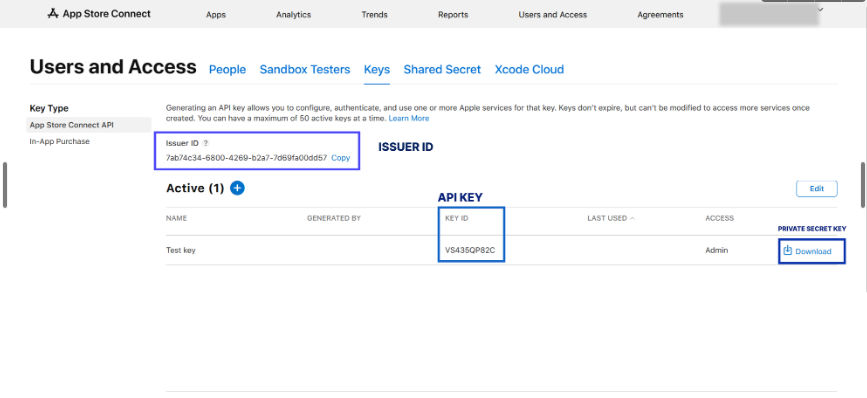
Store these credentials securely. You'll need them to connect with AppReviewBot.
Step 7: Connect Your Account in AppReviewBot Dashboard
Now that you have your API credentials, you can connect your Apple App Store account directly in the AppReviewBot dashboard:
- Go to your AppReviewBot Dashboard
- Click Store Accounts in the sidebar
- Click "Add Apple App Store Account"
- Enter your credentials:
- Issuer ID - The Issuer ID from Step 6
- Key ID - The Key ID from Step 6
- Private Key (.p8) - Upload the .p8 file you downloaded
- Click "Fetch Associated Apps" to verify your credentials
- Select the apps you want to connect
- Click "Link Account" to complete the setup
Your credentials are encrypted and stored securely. AppReviewBot uses industry-standard security practices to protect your data.
Step 8: All Set!
Once connected, you'll be able to:
- Reply to App Store reviews directly from Slack or Webex
- Access review analytics and insights
- Receive real-time review notifications
- View complete review history for your apps
The integration is active immediately after connecting your account. No waiting required!
Connect Google Play Store Account
Learn how to link your Google Play Console account with AppReviewBot to access reviews, app version details, and respond directly from your workspace.
Anomalies
Spot unusual app review patterns — rating spikes, volume surges, and average rating drops — with AppReviewBot anomaly alerts