

Connect Google Play Store Account
This guide helps you connect your Google Play Store Publisher account with AppReviewBot to enhance the capabilities of AppReviewBot for your app.
Linking your Google Play Console to AppReviewBot
To maximize the benefits of AppReviewBot, consider integrating your Google Play Console account and granting view permissions. By linking your Google Play Console with AppReviewBot, you can:
- Access app version details for every review
- Get review alerts faster than others
- Respond to reviews directly through AppReviewBot
This guide will walk you through the steps to connect your Google Play Console with AppReviewBot and how to permit access to your app reviews.
Only the Google Play Console account owner can follow through with this guide.
You can also follow these video guides for adding Google Play Store account:
- New Users: Watch Video
- Existing Users: Watch Video
Establishing a New Connection with Google Play Console
You can connect your Google Play Console to AppReviewBot using one of two methods:
- Option 1 (Recommended): Use AppReviewBot's service account
- Option 2: Use your own Google service account
Choose the option that best fits your organization's security policies.
Option 1: Using AppReviewBot's Service Account (Recommended)
Step 1: Sign In
Access the Google Play Console and sign in using the account owner's credentials.
Multi-Account Tip: If multiple Google profiles are active on your browser, it's advisable to either use a private browsing mode or a distinct browser profile. Navigating between the Google Play Console and Google Cloud Console can become confusing with multiple accounts, as you might unintentionally access the wrong account when switching between the two platforms.
Step 2: Open "Users and Permissions"
From the sidebar, click on "Users and Permissions" tab.
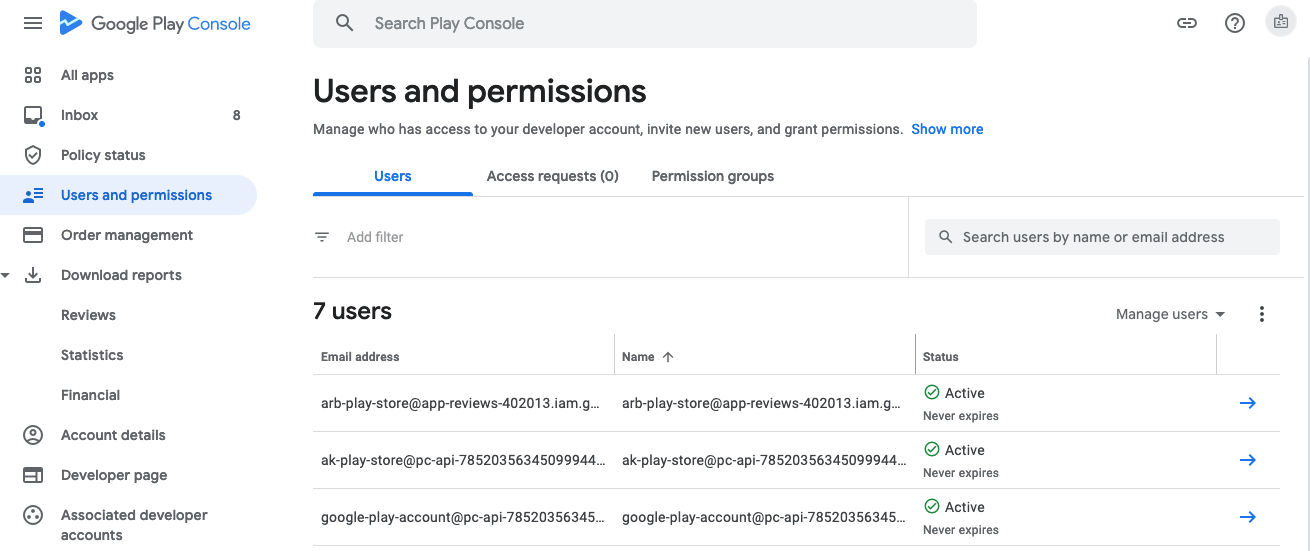
Step 3: Grant Access to AppReviewBot
Click on "Add new user" and provide access to the following email address:
AppReviewBot Service Account:
arb-play-store@app-reviews-402013.iam.gserviceaccount.com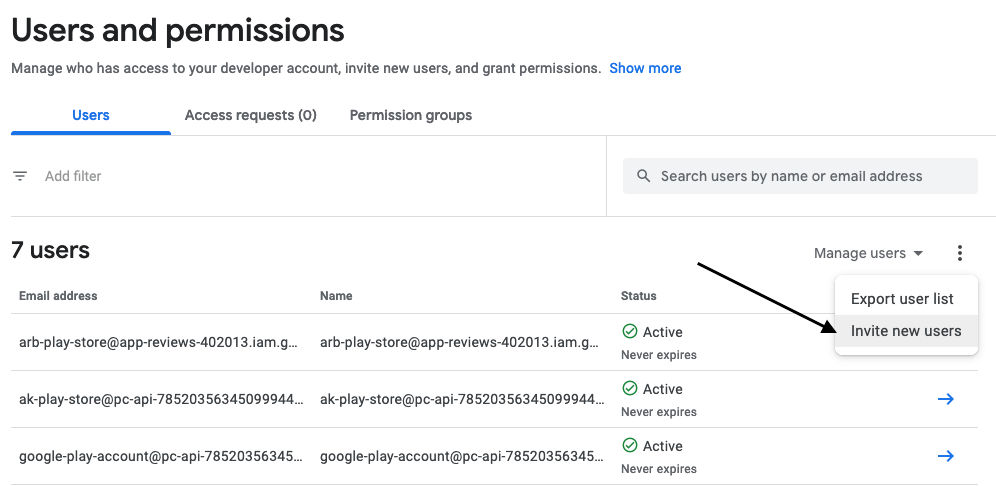
Step 4: Set Account Permissions
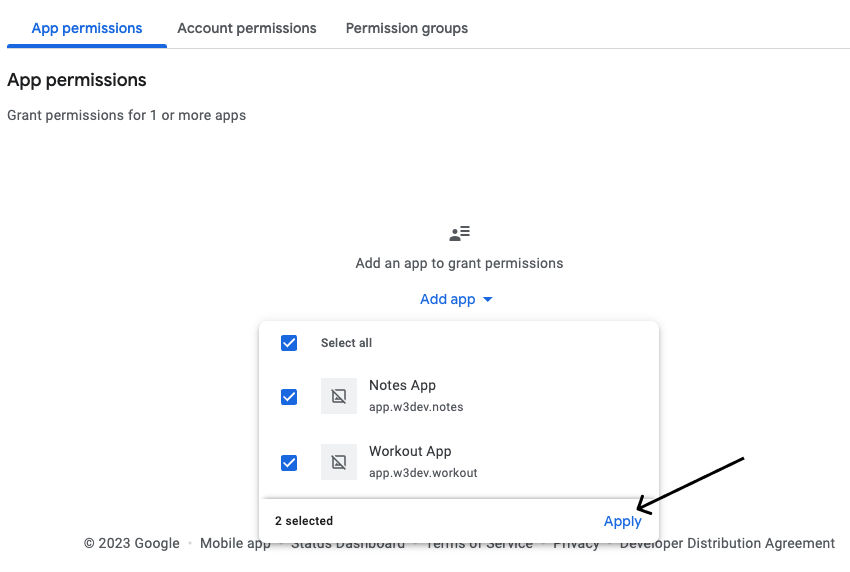
App Permissions
Go to "App Permission" and select all the applications that you are or want to track with AppReviewBot.
Account Permissions
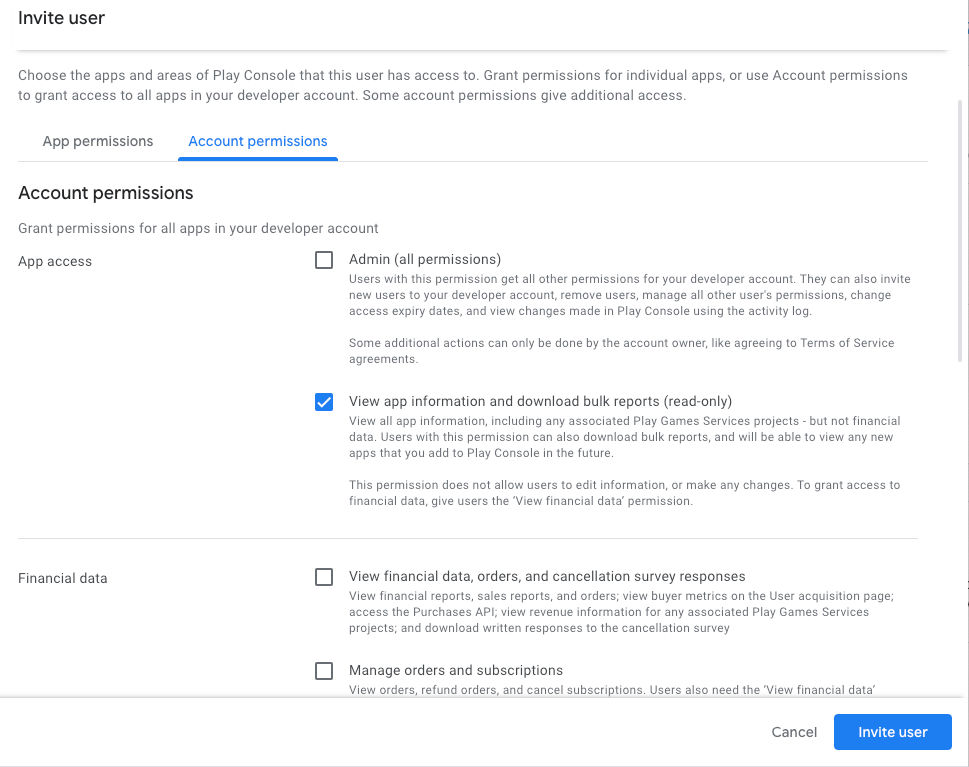
Move to "Account Permissions" and deselect all options, leaving only these two enabled:
-
✅ View app information and download bulk reports (read-only)
- This grants AppReviewBot 'Visibility' permission to access the 'Reports' section of your Console account and retrieve historical review data
-
✅ Reply to reviews
- This ensures you can respond directly from AppReviewBot
Then click on "Invite User"
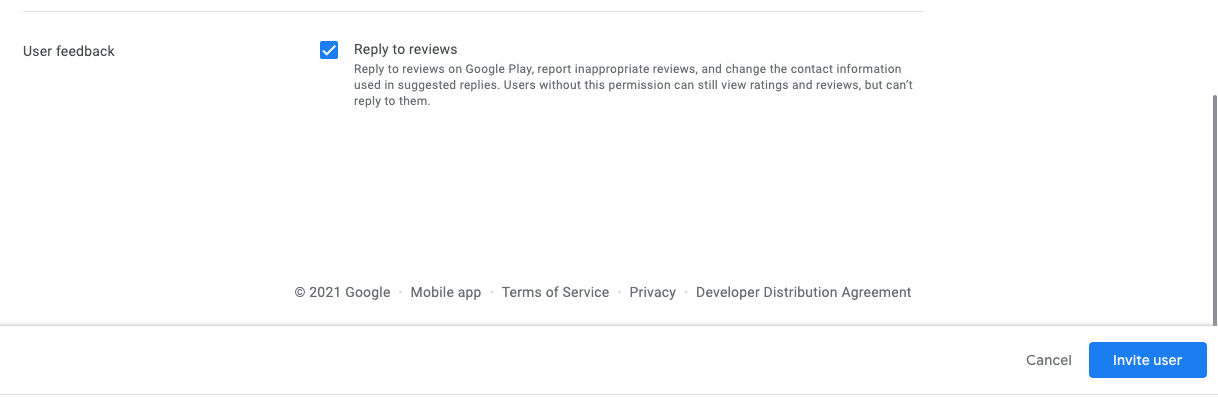
Google may take up to 24 hours for permissions to fully activate. If you experience issues connecting your account, please wait and try again after 24 hours.
Option 2: Using Your Own Google Service Account
If your organization prefers to use its own service account for enhanced security and control, follow these steps:
Step 1: Create a Google Service Account
Create your own Google Cloud service account with the necessary permissions to access the Google Play Developer API.
Watch our detailed video guide on creating and configuring a service account:
Steps to create your service account:
- Go to Google Cloud Console
- Create a new project or select an existing one
- Enable the Google Play Developer API
- Create a service account with appropriate permissions
- Download the service account JSON key file
Step 2: Grant Service Account Access in Google Play Console
After creating your service account, you need to grant it access to your Google Play Console:
- Access the Google Play Console and sign in
- Navigate to "Users and Permissions"
- Click "Add new user" and add your service account email (e.g.,
your-service-account@your-project.iam.gserviceaccount.com) - Set App Permissions: Select all applications you want to track
- Set Account Permissions: Enable only:
- ✅ View app information and download bulk reports (read-only)
- ✅ Reply to reviews
- Click "Invite User"
Google may take up to 24 hours for permissions to fully activate.
Step 3: Share Service Account Details with AppReviewBot Support
To enable AppReviewBot to use your service account:
- Open a support ticket at AppReviewBot Support
- In your ticket, request to add your custom Google service account
- Wait for our support experts to contact you
- When contacted, securely share your service account JSON key file content with our team
- Wait for our support team to configure your account
Your credentials are encrypted and stored securely using industry-standard security practices. Once added to our system, the credentials cannot be viewed again by anyone, including our support team.
Step 4: Verify the Connection
Once our support team confirms that your service account has been added, you can proceed to connect your apps in the dashboard (see Step 5 below).
Connecting Your Account (Both Options)
Step 5: Connect Your Account in AppReviewBot Dashboard
Once you've granted permissions to AppReviewBot in Google Play Console, connect your account directly in the AppReviewBot dashboard:
- Go to your AppReviewBot Dashboard
- Click Store Accounts in the sidebar
- Click "Add Google Play Store Account"
- Follow the on-screen instructions that match how you set up your Google Play Console:
- Option 1: If you added AppReviewBot's service account (recommended)
- Option 2: If you created your own Google Service Account
- Search for your Google Play Store apps one by one
- Add them to your selection
- Click "Link Account" to complete the setup
You can search and add multiple apps. The connection is established immediately after you link your account. If you encounter permission errors, wait up to 24 hours for Google's permissions to fully activate.
Step 6: All Set!
Once connected, you'll be able to:
- Reply to Google Play reviews directly from Slack or Webex
- Access review analytics and insights
- Receive real-time review notifications
- View complete review history for your apps
The integration is active immediately after connecting your account. No waiting required!
Who Can Access This Data?
The data collected under the authenticated Google Play app (indicated by a green padlock icon) can only be accessed by users associated with teams that have a linked Google Play Developer Console account for that app connected to their team.
This ensures your app review data remains secure and accessible only to authorized team members.
Overview
Link your Google Play Console or App Store Connect account to unlock faster review alerts, app version metadata, and the ability to reply to reviews from AppReviewBot.
Connect Apple App Store Account
Learn how to link your Apple App Store account with AppReviewBot to access reviews, app version details, and respond directly from your workspace.