

Reply from Freshdesk – Setup Guide
Reply from Destination is currently in private beta and may not be available on your account yet. Contact support if you'd like early access.
This guide walks you through enabling Reply from Freshdesk so you can reply to app store reviews directly from Freshdesk without opening the AppReviewBot dashboard.
Requirements
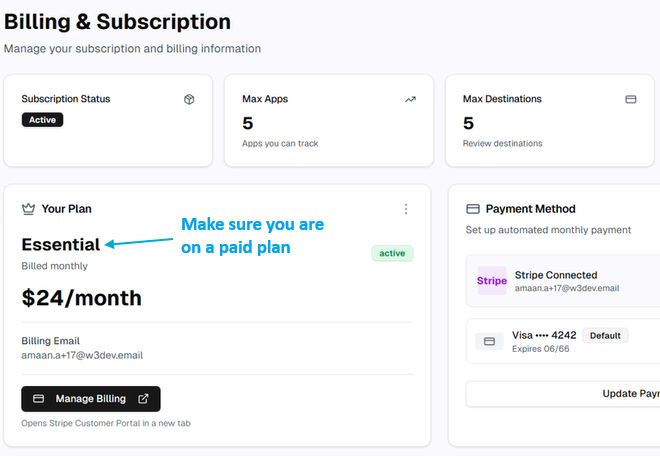
- Paid plan – Reply from Freshdesk is only available on a paid AppReviewBot plan.
- Developer account connected – The corresponding developer account must be connected in AppReviewBot.
To connect your store account follow: Apple App Store | Google Play Store
- Reviews from developer account – The app's reviews must be coming from the connected store account.
Step 1: Confirm store account and plan
- In the AppReviewBot dashboard, go to Billing from the sidebar and confirm you are on a paid plan.
- Make sure you have your store account connected.

Step 2: Confirm your Freshdesk account
There are two ways to connect AppReviewBot with your Freshdesk account
- With Subdomain and API key from AppReviewBot
- Using our AppReviewBot app from Freshdesk Marketplace.
Since for "Reply from Freshdesk" feature we need to have AppReviewBot installed we will be showing how to do that in this guide
Reply From Destination Only works if you have the AppReviewBot App installed in your Freshdesk
Install the ARB app in Freshdesk
1. Install from the Freshdesk Marketplace
Go to the Freshdesk Marketplace, search for AppReviewBot, and install it into your Freshdesk account.
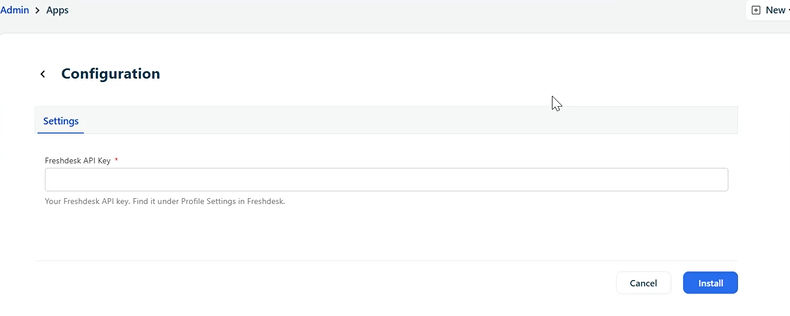
2. Enter your Freshdesk API key
After installation, the app will prompt you to provide your Freshdesk API key. Enter it and click "Install" to authorize the connection.
3. Account and destination creation
Once the API key is accepted, AppReviewBot will automatically:
- Create an account tied to your Freshdesk user's email (if one does not already exist).
- Create a Freshdesk destination linked to that account.
4. Configure the app
After installing the app and providing the API key, you will find the AppReviewBot in Left Sidebar below Admin Icon. Click on it to see the Configuration Screen
On the configuration screen, set up the app to match your needs:
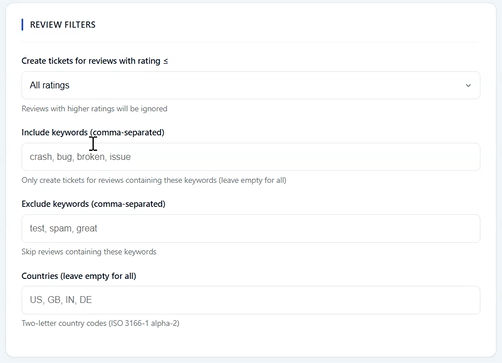
- Under Review Filters, add the filtering rules according to your need.
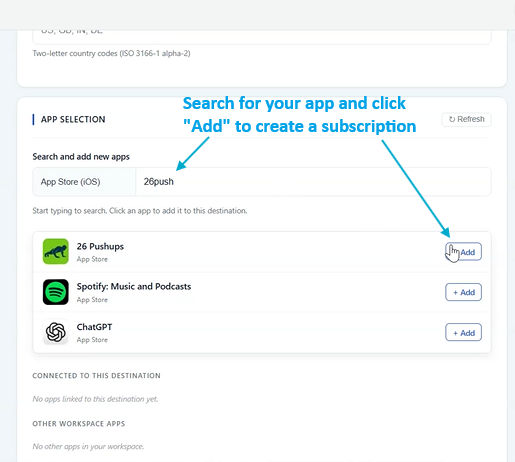
- Under App Selection, add the apps whose reviews you want to receive as Freshdesk tickets. A subscription will be created automatically for each selected app.
- Toggle AI Draft Reply and configure it depending on how you want the AI draft replies generated and added as internal notes on each ticket.
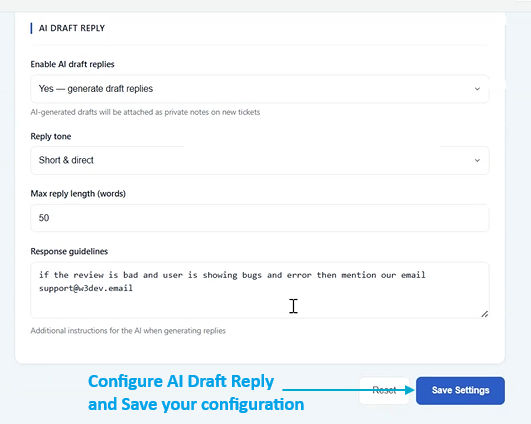 5. Save your settings
Once you have finished configuring, click Save Settings. The setup is complete and reviews will start appearing as tickets in your Freshdesk dashboard.
Setup Complete
Once connected, app store reviews will appear as tickets in your Freshdesk dashboard.
Replying to reviews in Freshdesk
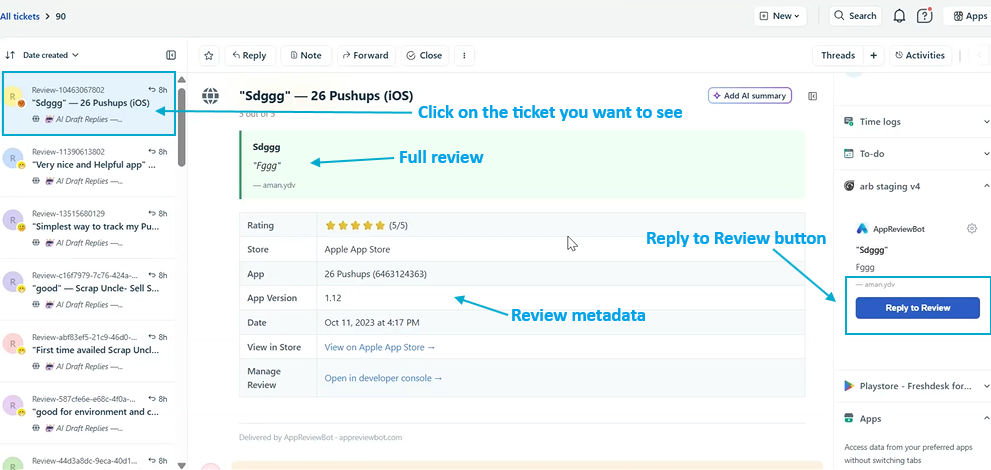
- Open the Freshdesk dashboard and click on a review ticket.
- You will see the review details in the ticket.
- You can either type your own response OR use AI Draft Reply in the internal note that is created by AppReviewBot.
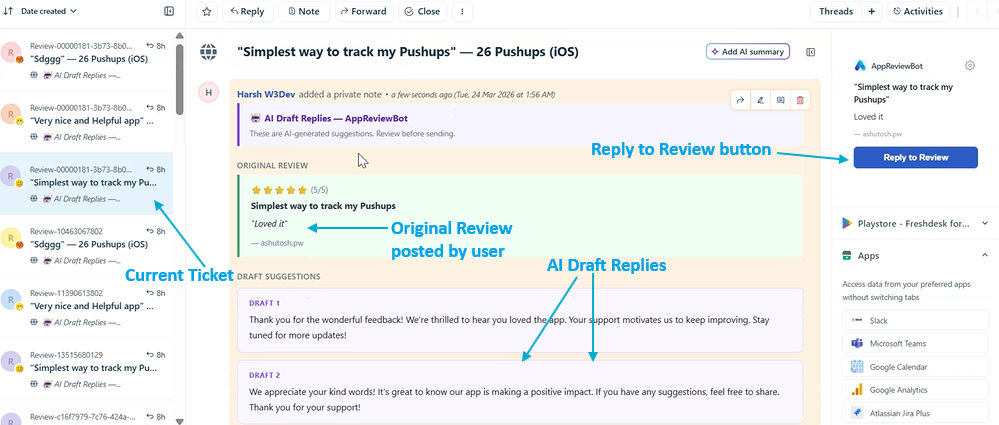
- From Right sidebar look for AppReviewBot app icon and click on it to open AppReviewBot sidebar.
- In the AppReviewBot sidebar, click Reply to Review, type your response, and click Submit.
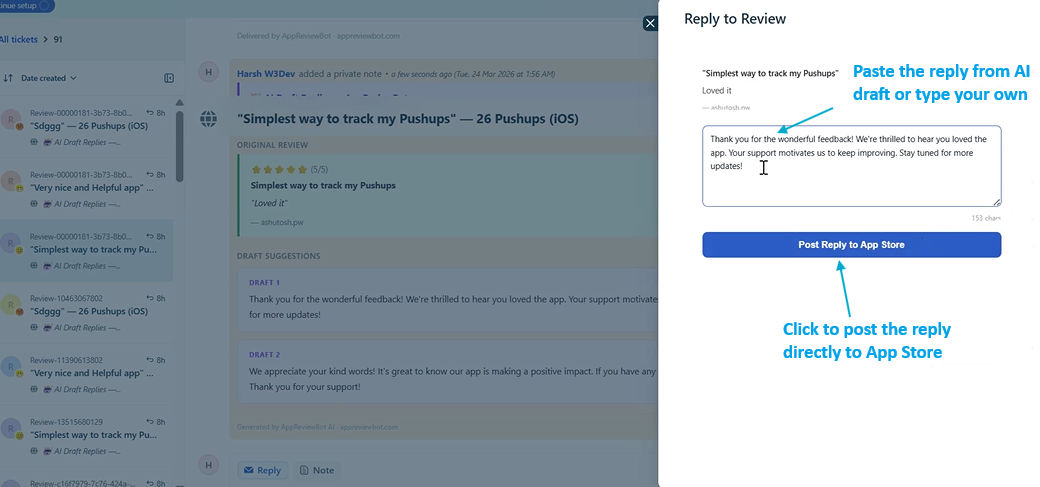
- Your reply will be posted directly to the App Store!
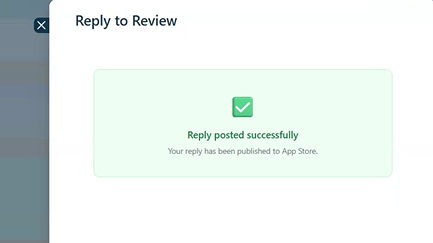
If you are not on paid plan or your Store Account is not connected you will get an error that you need to first be on paid plan and connect your Store account to post replies
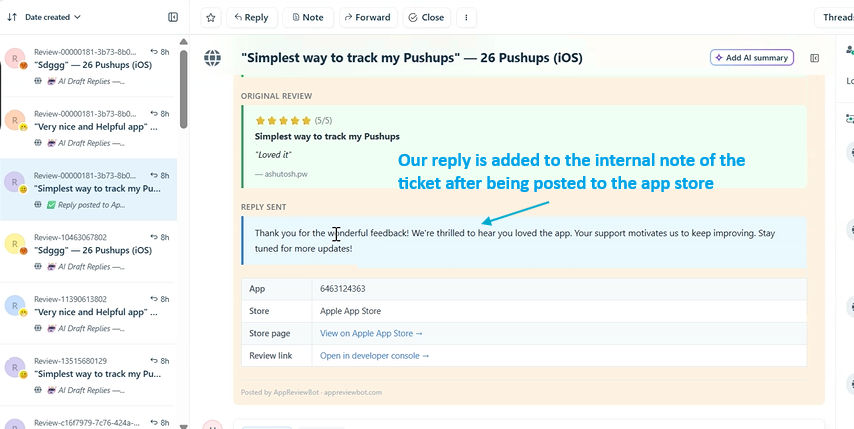
You will also see the internal note in the ticket being updated with the reply and other metadata after successful posting of reply to app store
Conclusion
There you have it. Now you can reply to reviews without needing to leave Freshdesk at all!