

Add Your First App
Summary
Adding an app to AppReviewBot connects your mobile app's reviews to your chosen destinations. The setup takes just a few minutes and immediately starts monitoring for new reviews.
Before you start
Make sure you have:
- An AppReviewBot account (sign up for free)
- Your app's store URL (from the App Store or Google Play)
- Access to at least one destination (Slack, email, etc.)
Don't have a destination configured? You can connect one during the setup process.
Steps to add an app
1. Navigate to your dashboard
- Log in to your AppReviewBot account
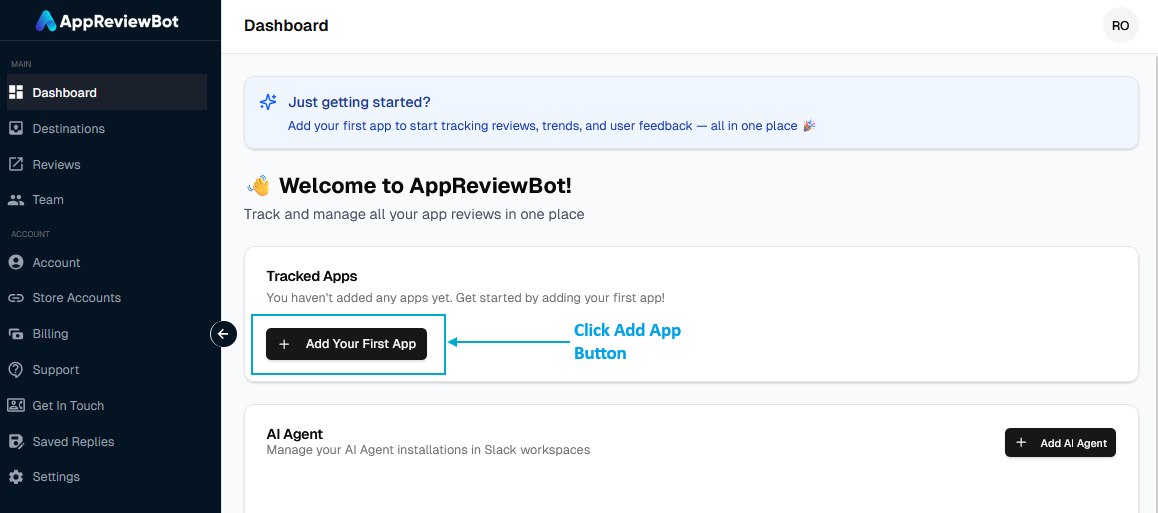
- Click Add App in the Dashboard page
2. Choose Task
Select what you want to do:
- Send Review Alerts — Get notified when new reviews arrive in a destination like Slack, email, or Discord
- AI Agent — Install AI Agent in Slack to get intelligent insights about your app reviews.
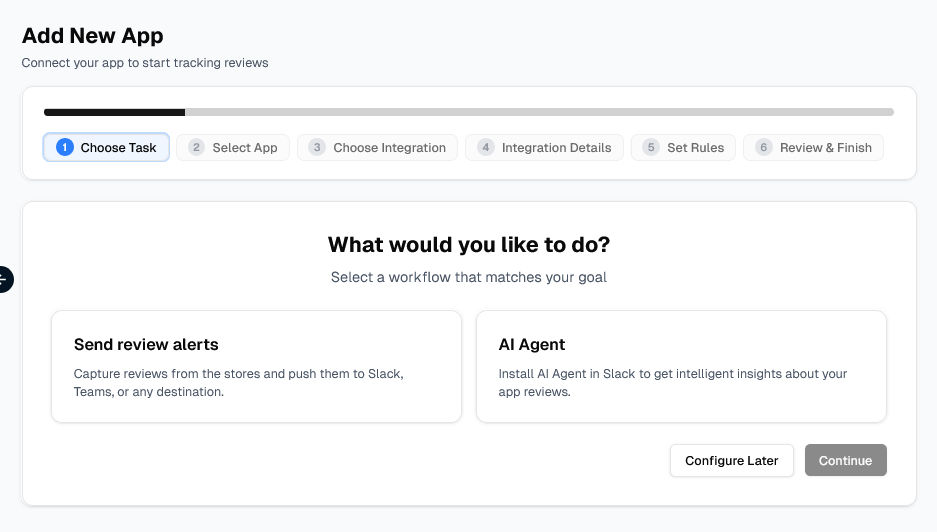
Select Send Review Alerts and click Continue.
3. Select App
Click on Search For Additional App to add a new app
If you have already added apps, they will be shown here (Select App). You can use them to quickly create a new subscription by adding a new destination with filters as per your requirements.
Option A: Paste the store link
Paste your app's URL directly from the App Store or Google Play into the input field.
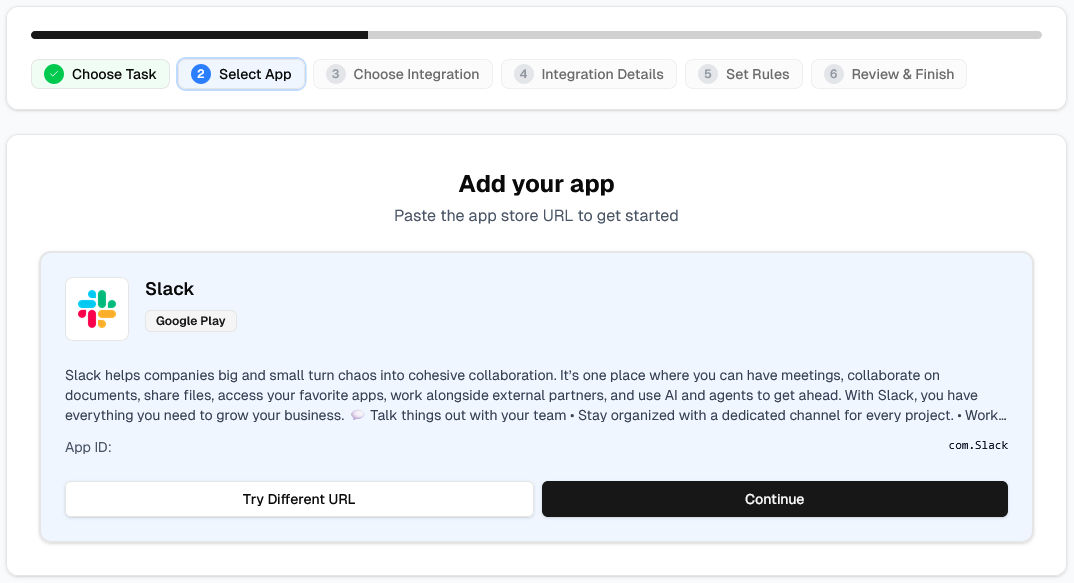
Option B: Search by name
- Click "or select Platform and search"
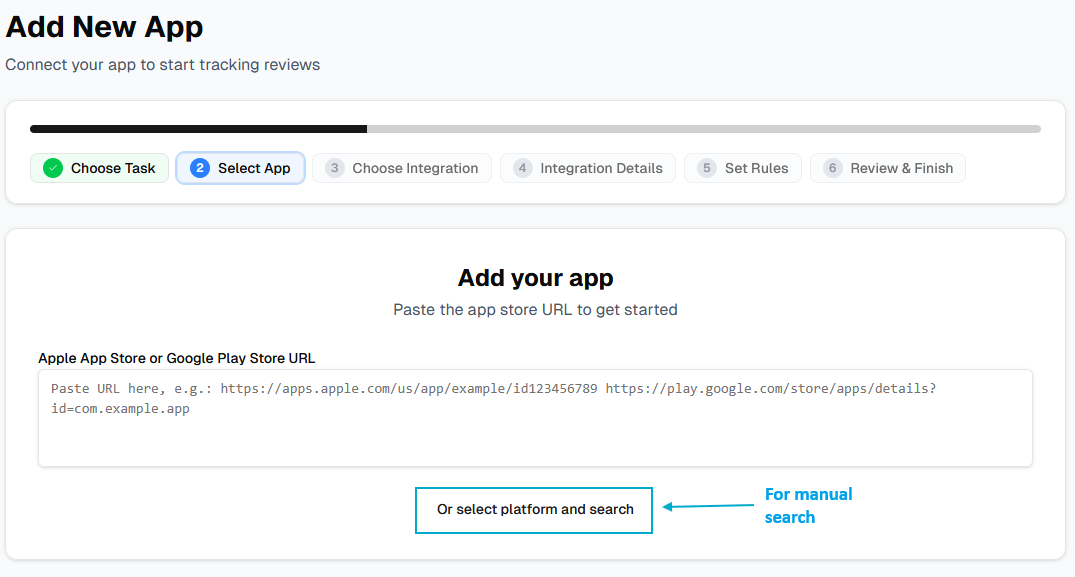
- Select your platform (Apple App Store or Google Play)
- Search for your app by name
- Select your app from the results
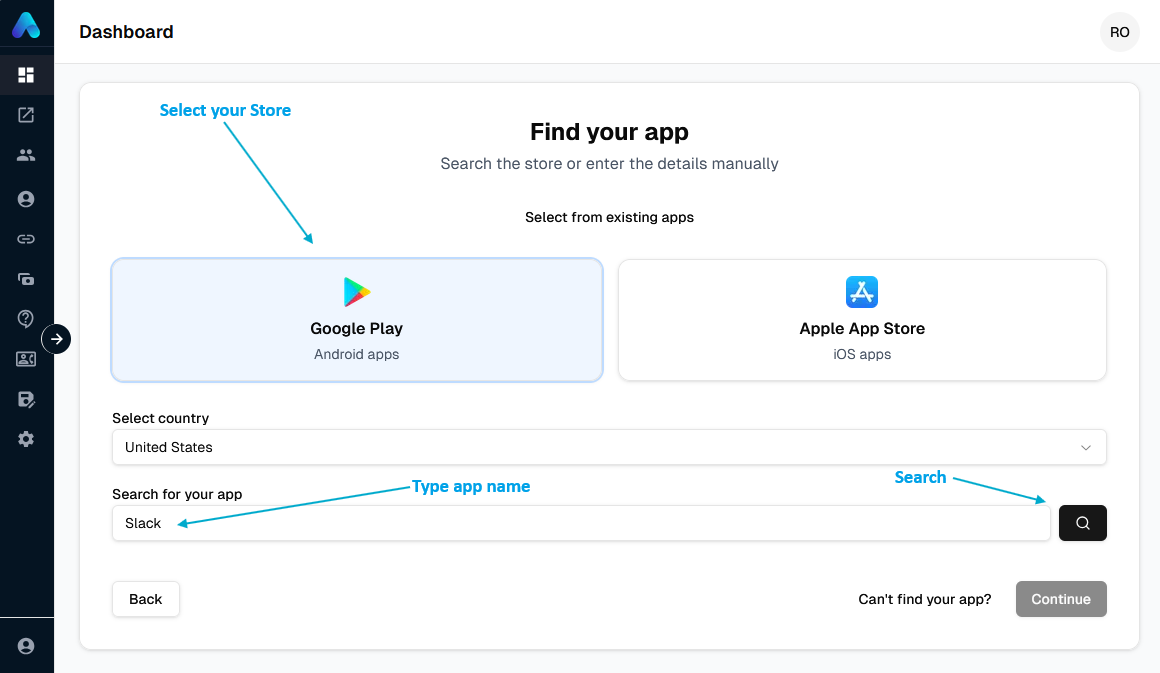
Click Continue.
4. Choose Integration
Select the destination where you want to receive review alerts (Slack, Email, Discord, Teams, etc.) and click Continue.
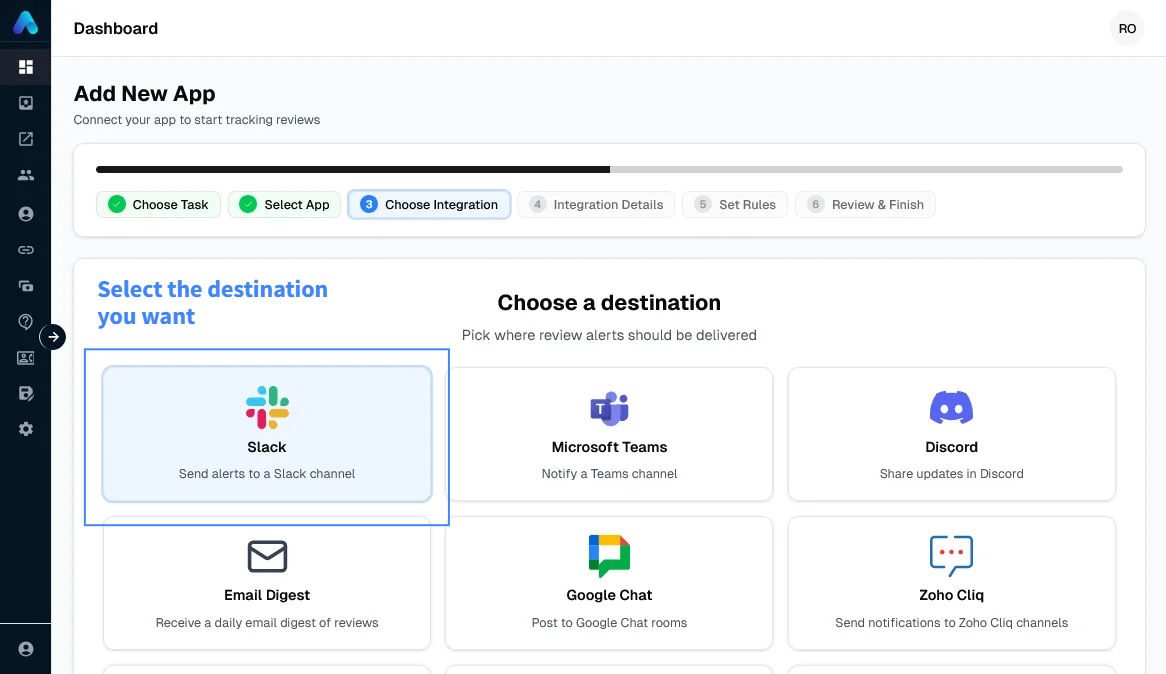
Learn more about destinations here
5. Connect your integration
Follow the on-screen instructions to authorize and connect your chosen destination.
6. Choose channel or recipient
Select the specific channel, group, or inbox where reviews should be sent — for example, a Slack channel like #app-reviews or an email address.
7. Add filters (optional)
Configure which reviews trigger notifications:
Rating filter:
- All ratings (1–5 stars) — Default
- Specific ratings (e.g., only 1–2 stars for support alerts)
Country filter:
- Filter your reviews by a specific country or countries
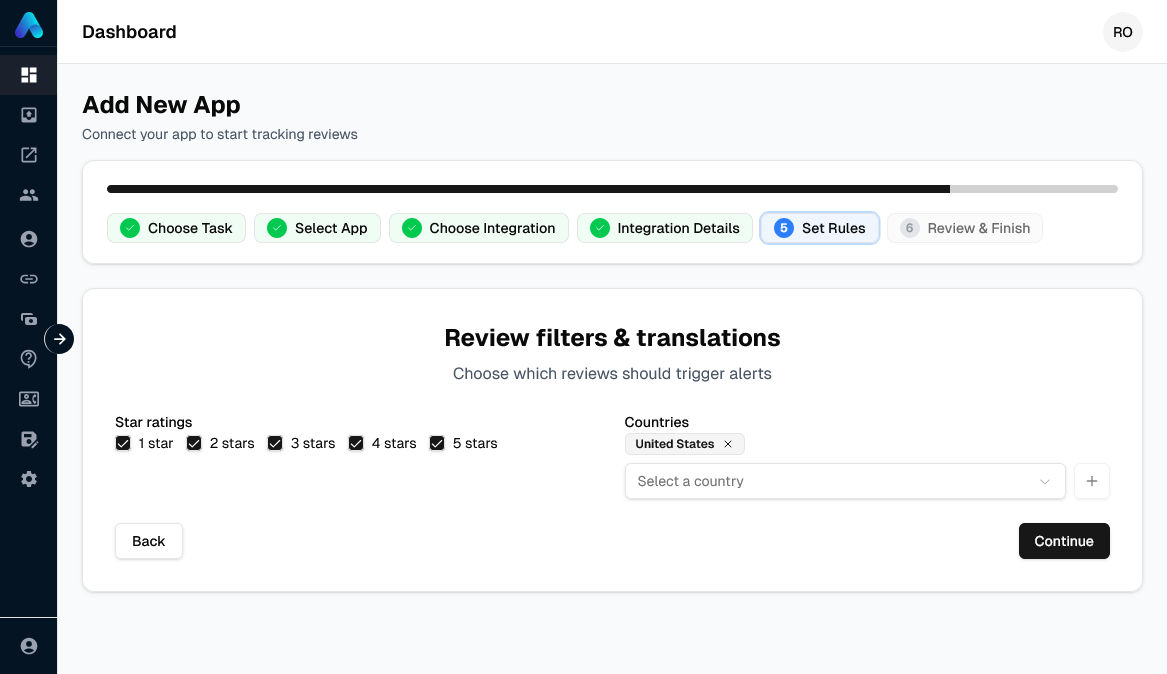
8. Finish Setup
Review your configuration. If everything looks correct, click "Finish Setup". A new subscription will be created and AppReviewBot will begin monitoring your app immediately.
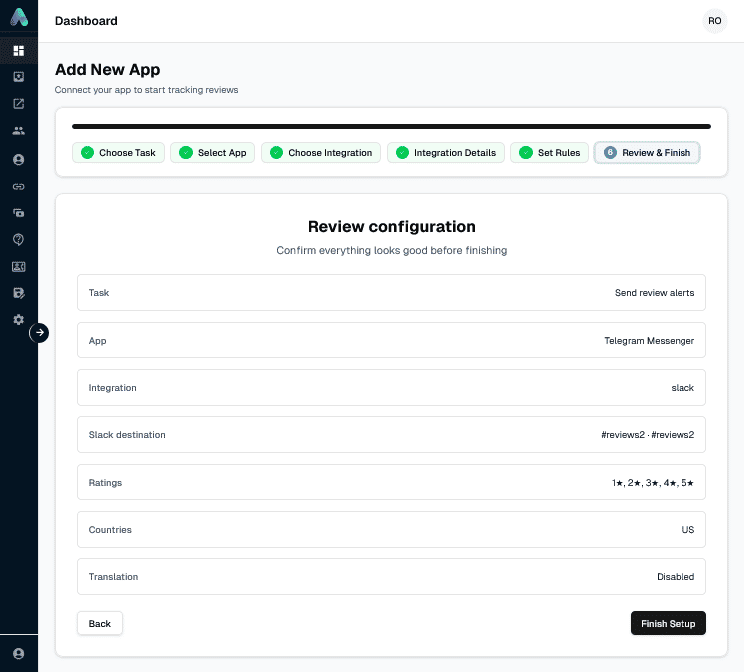
What happens next
Immediately
- Your app appears in the dashboard with "Active" status
- AppReviewBot queues the first review fetch
- Subscription settings are saved
Within 1-2 hours
- First review sync completes
- New reviews start appearing in your destinations
- Notifications begin flowing according to your filters
Ongoing
- AppReviewBot checks for new reviews periodically
- Reviews are automatically delivered to your destinations
- All reviews remain accessible in the dashboard
By default, AppReviewBot fetches the most recent reviews. To access extended historical data, connect your developer account via Sidebar → Store Accounts. See Review History for details.
Questions?
See common questions in our FAQ section.