

What Are Destinations?
Summary
Destinations are the platforms where AppReviewBot delivers your app reviews. Each destination represents a specific tool or channel—like Slack, email, or Discord—that receives review notifications automatically.
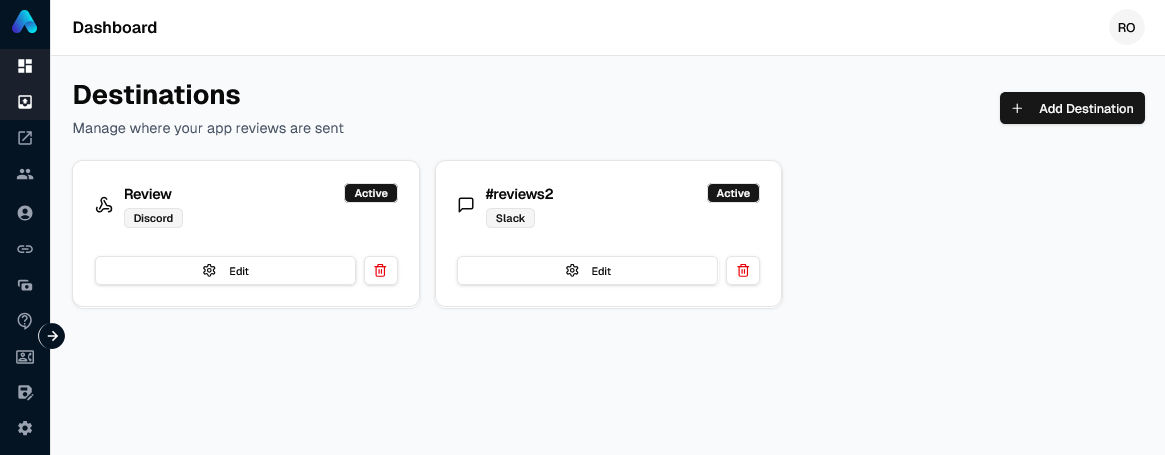
How destinations work
When AppReviewBot fetches new reviews from the app stores, it routes them to your configured destination based on your subscription settings. Each subscription has one destination.
Destination vs. subscription
- Subscription: The app you're monitoring
- Destination: Where reviews from that app are delivered
Each subscription has exactly one destination. To send an app's reviews to two different places, create two separate subscriptions for the same app.
Supported platforms
AppReviewBot integrates with 12 platforms across different categories:
Team communication
- Slack - Channels, DMs, or private channels
- Microsoft Teams - Team channels and groups
- Discord - Discord servers and channels
- Google Chat - Google Workspace spaces
- Webex - Webex Teams spaces
- Zoho Cliq - Cliq channels
- Telegram - Telegram channels or bots
- Email Delivery - Any email address
- Individual inboxes
- Distribution lists
Customer support
- Zendesk - Automatically create support tickets
- Freshdesk - Automatically create support tickets
Issue tracking
- Jira - Create Jira Cloud issues from matching reviews (guide)
- Linear - Create Linear issues from matching reviews (guide)
Automation & integration
- Zapier - Connect to 5,000+ apps
- Make.com - Build complex workflows with the AppReviewBot Make app
- n8n - Self-hosted workflow automation with the AppReviewBot community node
Setting up a destination
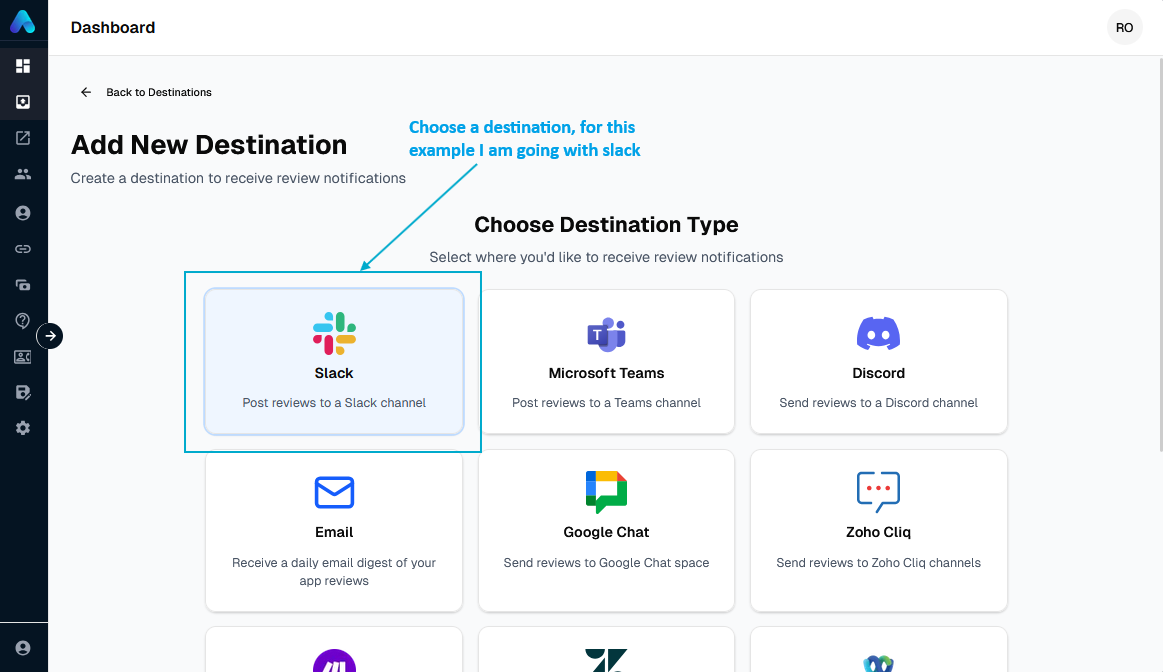
1. Choose your platform
Navigate to Destination Page from Sidebar and click Add Destination.
Select the destination you want
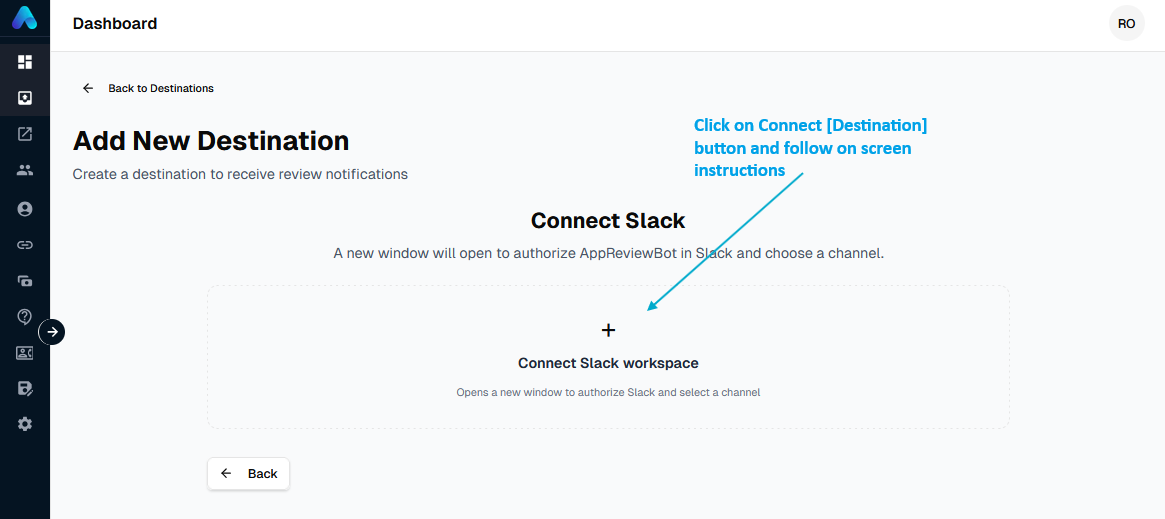
2. Authorize the connection
Grant AppReviewBot permission to access your chosen platform by following on screen instructions
3. Configure the target
Specify where reviews should be delivered:
- Slack: Select the channel (e.g., #app-reviews)
Re-enable Destination
If review delivery fails repeatedly, AppReviewBot automatically disables the destination to prevent further errors. You will receive an email notifying you that your destination was disabled, along with a direct link to the destination page in the dashboard.
To re-enable it:
- Open the link in the email, or navigate to Destinations from the sidebar.
- Find the disabled destination card — it will be marked as disabled.
- Click the Re-enable button on the card.
- Follow the on-screen setup guide to reconnect the destination (the same steps as the initial setup).
Once you complete the guide, the destination will be active again and reviews will resume delivery.
Questions?
See common questions about destinations in our Destinations FAQ.