

Managing Your Subscriptions
Summary
Managing subscriptions lets you control which apps are actively monitored, adjust delivery settings, and optimize your plan usage.
Viewing all subscriptions
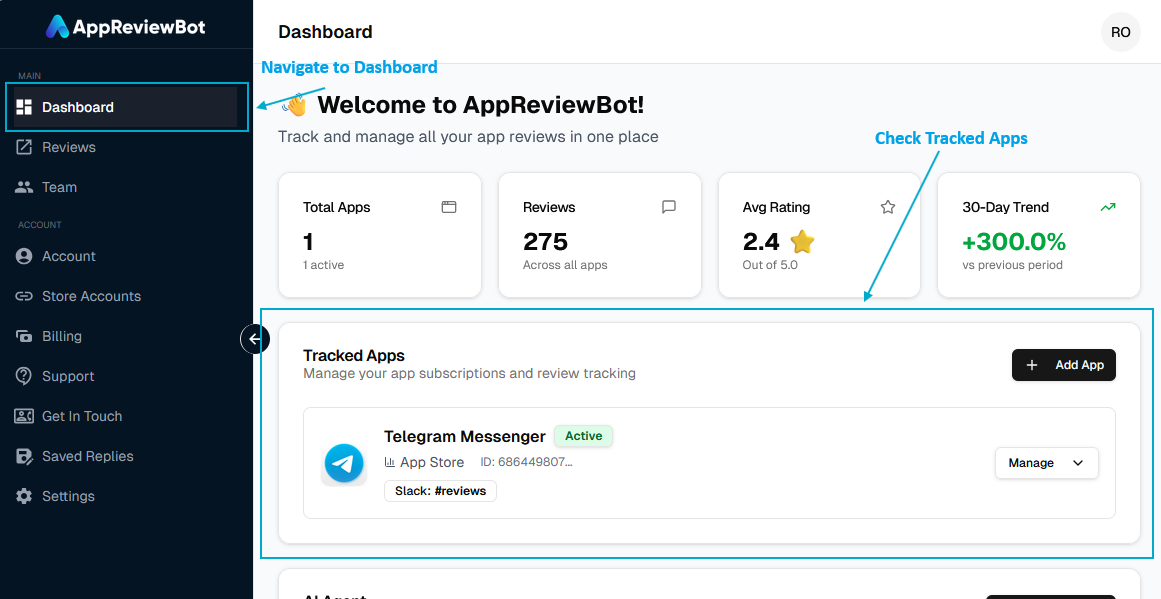
Access your complete subscription list:
- Navigate to Dashboard → Tracked Apps Card
- View all subscriptions with:
- App name and icon
- App store platform (iOS, Android, etc.)
- Current status (Active)
- Configured destinations
Editing a subscription
Modify settings for an existing app/subscription:
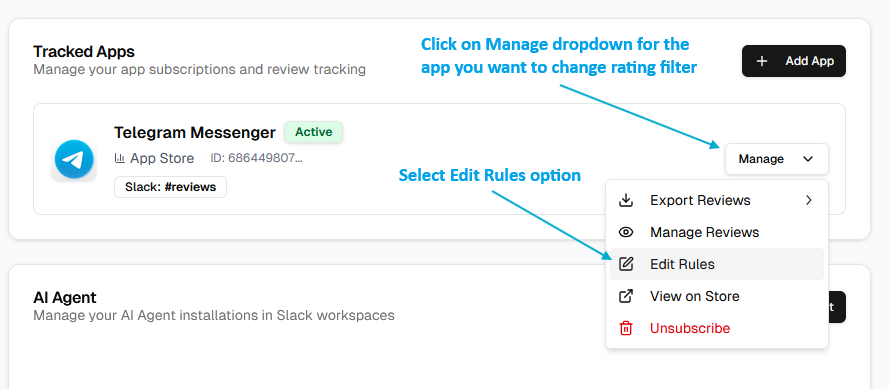
- Go to the Dashboard page from Sidebar
- Click Manage dropdown for the app you want to edit
- You can change following settings:
- Add destination if no destination is already connected
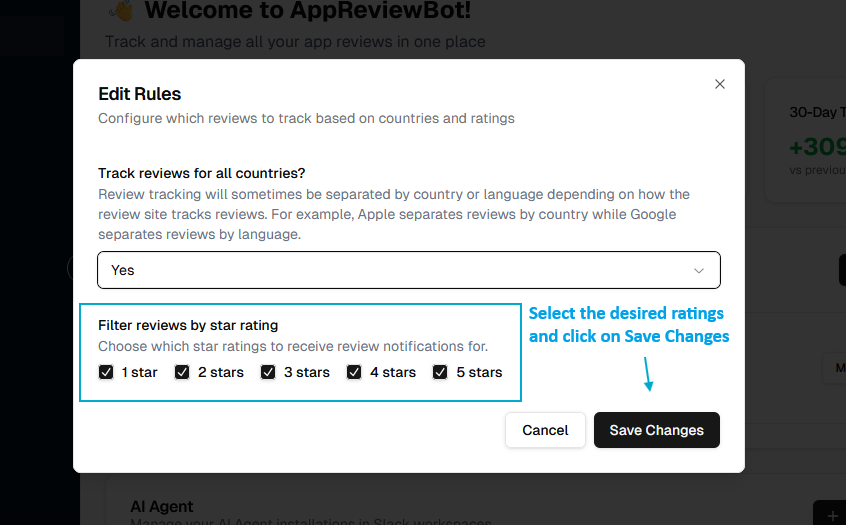
- From Edit Rules option
- Modify rating filters
- Change country filters
Changes take effect immediately for new reviews.
 Edit Rule Modal
Subscription statuses
Active
What it means: Currently monitoring and fetching reviews
Characteristics:
- Fetches new reviews periodically
- Counts toward your plan limit
- Delivers reviews to configured destinations
When to use: Default status for apps you're actively monitoring
Unsubscribed (Deleted)
What it means: Permanently removed from AppReviewBot
Characteristics:
- Stops fetching new reviews
- Historical review data preserved (read-only)
- All settings and destinations removed
- Does not count toward limits
- Cannot be undone
When to unsubscribe:
- Permanently retiring the app
- Don't need the configuration anymore
- Want to completely remove from dashboard
How to unsubscribe:
Go to Dashboard -> Tracked Apps -> App you want to remove -> Click Manage dropdown -> Select Unsubscribe
Unsubscribing is permanent and cannot be undone.
Questions?
See common questions about managing subscriptions in our Managing Subscriptions FAQ.