

Reply from Slack – Setup Guide
This guide has moved to Reply from Slack under Integrations → Slack. The content below is kept for existing links.
Reply from Destination is currently in private beta and may not be available on your account yet. Contact support if you'd like early access.
This guide walks you through enabling Reply from Slack so you can reply to app store reviews directly from Slack without opening the AppReviewBot dashboard.
Requirements
- Paid plan – Reply from Slack is only available on a paid AppReviewBot plan.
- Slack destination already set up – You must have at least one Slack destination that receives review notifications.
- Developer account connected – The corresponding developer account must be connected in AppReviewBot.
To connect your store account follow: Apple App Store | Google Play Store
- Reviews from developer account – The app's reviews must be coming from the connected store account.
Step 1: Confirm store account and plan
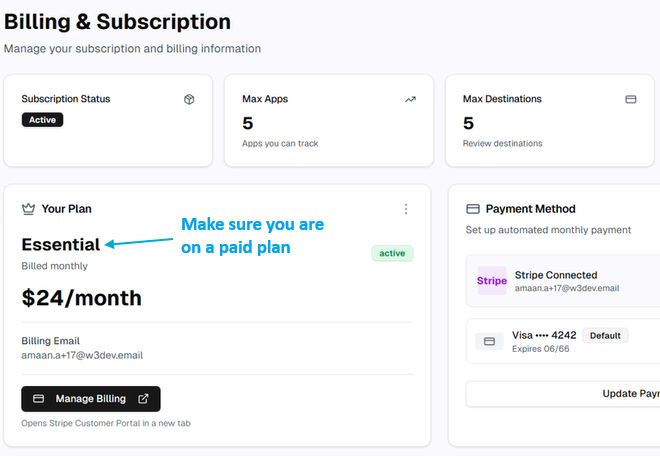
- In the AppReviewBot dashboard, go to Billing from the sidebar and confirm you are on a paid plan.
- Make sure you have your store account connected.

Step 2: Enable Replies from Slack
-
Go to Dashboard page from sidebar.
-
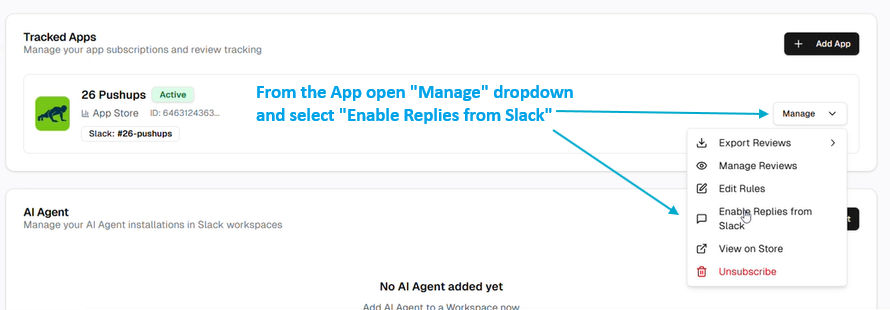
Find the app that has your Slack destination.
-
Open the app manage menu and select Enable Replies from Slack.
-
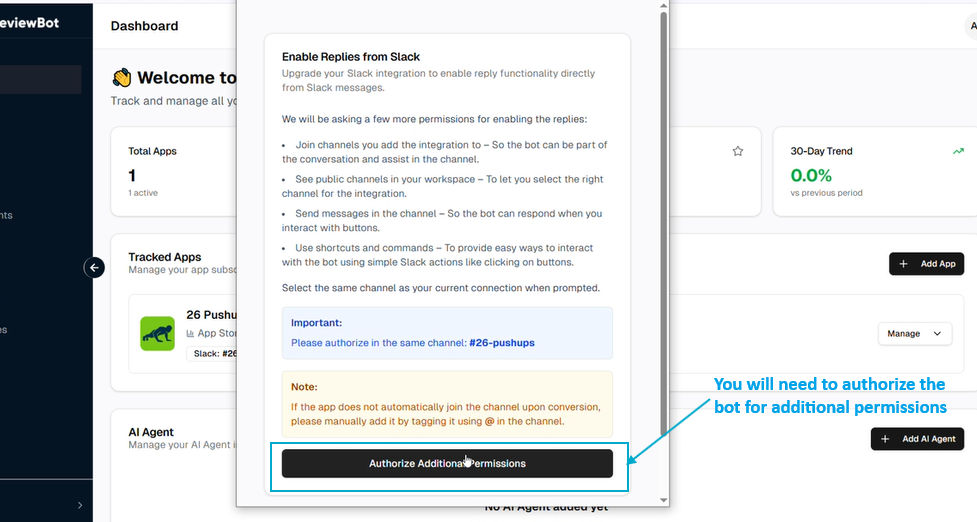
If prompted, authorize additional permissions for Slack
-
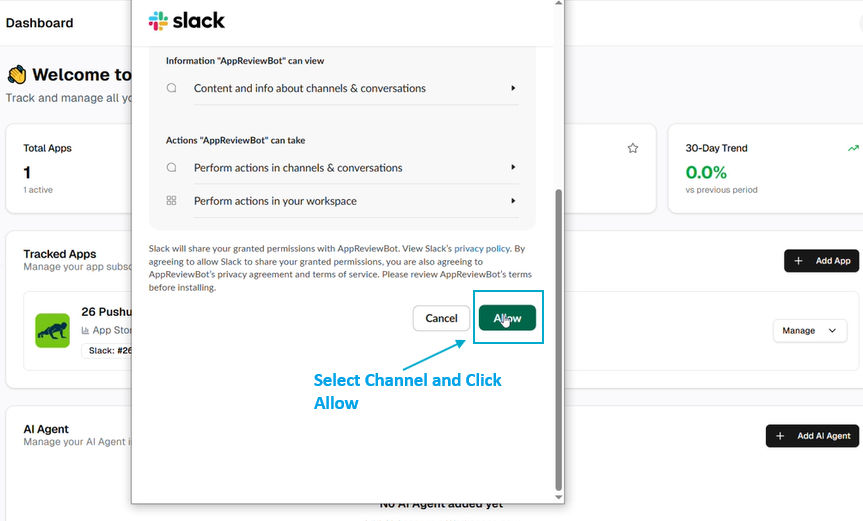
Select the same channel that already receives review notifications and click Allow
Setup Complete
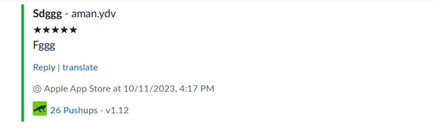
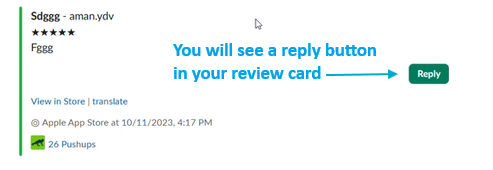
Now in your Slack Channel you will see a new "Reply" button in the review cards
In Slack
Before Enabling Replies
After Enabling Replies
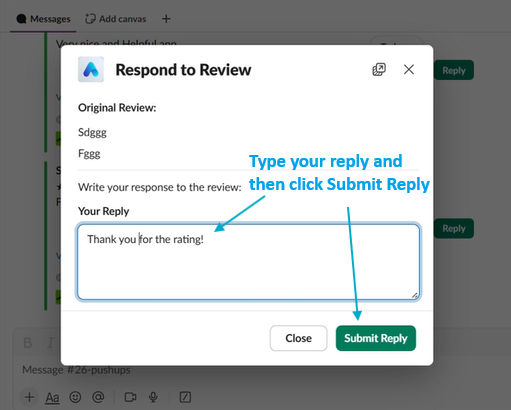
Click on Reply button, type your response and click Submit Reply and your reply will be posted directly to the App Store!
Conclusion
There you have it. Now you can reply to the reviews without needing to leave Slack at all!