How to Get App Reviews in Microsoft Teams
July 30, 2023
TL;DR
Connect AppReviewBot to Microsoft Teams in 5 minutes. You'll create an Incoming Webhook in Teams, then paste the URL into AppReviewBot. Reviews will start appearing in your channel immediately.
What you'll need:
- A Microsoft Teams account with permission to add connectors
- Your app listed on App Store or Google Play
Why Microsoft Teams?
If your team already lives in Microsoft Teams, there's no reason to check another dashboard for app reviews. AppReviewBot delivers reviews directly to a Teams channel so everyone sees them in real-time.
What you'll get:
- New reviews posted to your channel within minutes
- Star rating, reviewer name, and full review text
- Links to view and respond on the app store
Step 1: Find Your App on AppReviewBot
- Go to appreviewbot.com
- Type your app name in the search bar
- Select your app from the dropdown
You'll need to enter your email address and a Microsoft Teams webhook URL (we'll create that next).
Step 2: Create an Incoming Webhook in Teams
Incoming Webhooks let external services post messages to Teams channels. Here's how to set one up:
2.1 Open Apps in Teams
In Microsoft Teams, click Apps in the left sidebar.
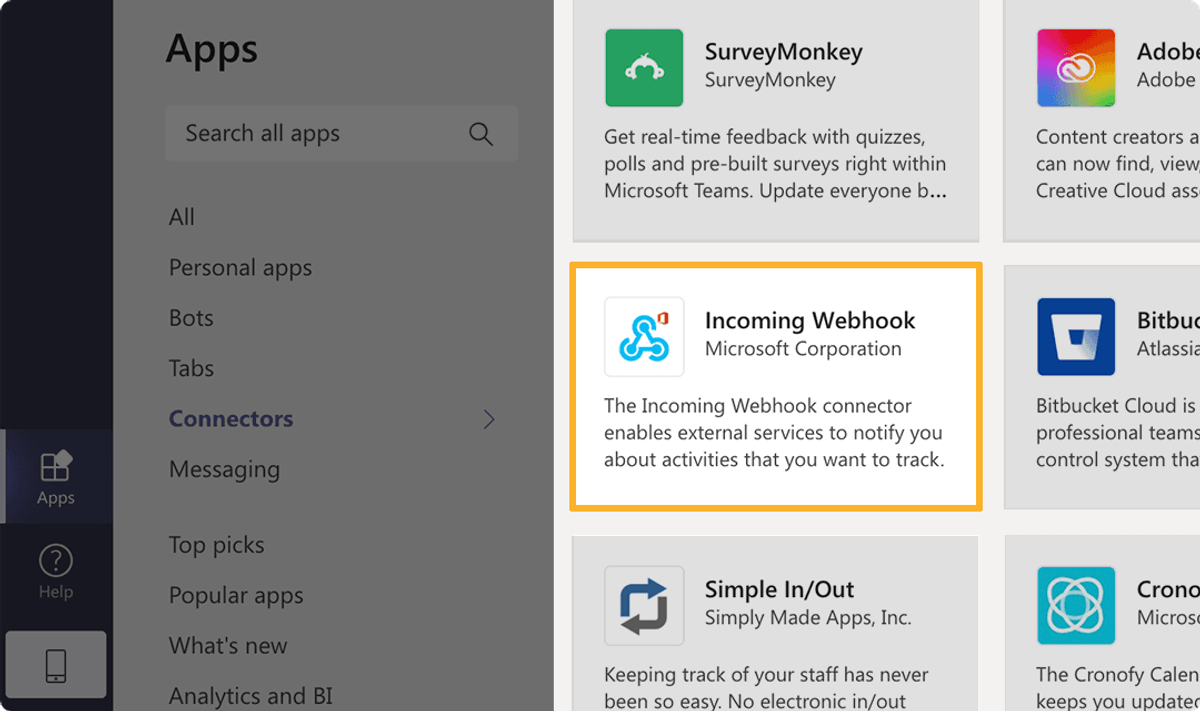
2.2 Search for "Incoming Webhook"
Type "Incoming Webhook" in the search bar and select it from the results.
2.3 Add to a Team
Click Add to a team and select the channel where you want reviews to appear.
Tip: Create a dedicated #app-reviews channel to keep feedback organized.
2.4 Configure the Webhook
- Name your webhook: AppReviewBot
- Upload an icon (optional — download our icon here)
- Click Create

2.5 Copy the Webhook URL
Teams will generate a unique webhook URL. Copy this URL — you'll need it in the next step.
Click Done to finish.
Step 3: Complete AppReviewBot Setup
- Go back to AppReviewBot
- Paste your webhook URL into the form
- Click Get App Reviews in Microsoft Teams
That's it. Reviews will start appearing in your Teams channel within minutes.
What Reviews Look Like in Teams
Each review appears as a formatted message card showing:
- Star rating (1-5 stars)
- Review title and text
- Reviewer name (when available)
- Date posted
- Link to the review on App Store or Google Play
Your team can discuss reviews directly in the thread and coordinate responses.
Troubleshooting
Reviews not appearing?
- Double-check the webhook URL was copied correctly
- Verify the webhook is still active in Teams
- Wait a few minutes — new reviews can take 5-15 minutes to arrive
Webhook URL invalid?
- Make sure you copied the entire URL
- Create a new webhook if needed
Need to change the channel?
- Create a new webhook in the new channel
- Update the webhook URL in your AppReviewBot settings
Next Steps
Now that reviews are flowing into Teams:
- Set up filters — Alert only on low-star reviews or specific keywords
- Add multiple apps — Monitor all your apps in one channel or separate channels
- Create response workflows — Assign reviews to team members directly in Teams
Questions? Contact support@appreviewbot.com.